


OneSearch
Introduction to E-Resources
What are Library E-Resources?
Library E-Resources are online articles, newspapers, books, reports, and other useful information available through online platforms called databases. SIM Library subscribes to these databases so that SIM users can access them.
What can you use E-Resources for?
- Find reliable sources for assignments and research.
- Access company, industry, country, and market reports.
- Read newspapers, journals, and magazines.
- Stay up to date with current news and developments.
How to sign in?
- Go to the E-Resources page: https://primo.sim.edu.sg
- Sign in using your SIM MyMail account.
- Select the e-resource you want to access.
Need more help?
Scroll down this page for:
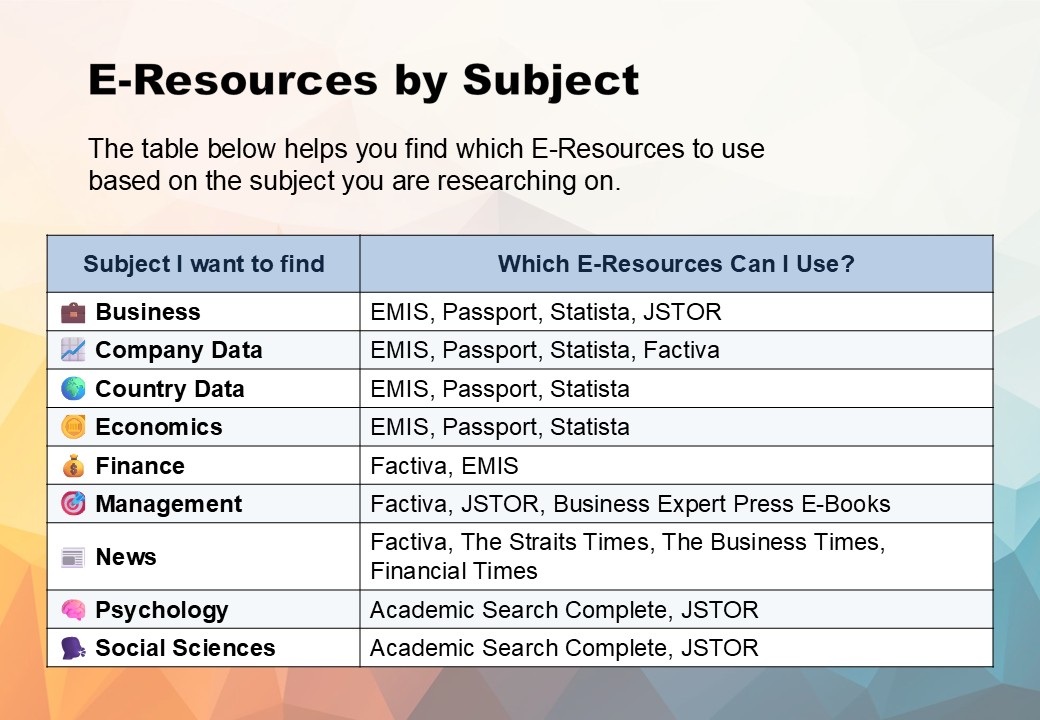
- E-Resources by Subject (See image below)
- E-Resources Guides
E-Resources Guides
Academic Search Complete
Academic Search Complete (ASC) provides full-text access to scholarly journals and magazines.
Use ASC to find articles on the Arts & Humanities, Social Sciences, and Science & Technology.
Example: Is intrinsic or extrinsic motivation better for long-term physical activity?
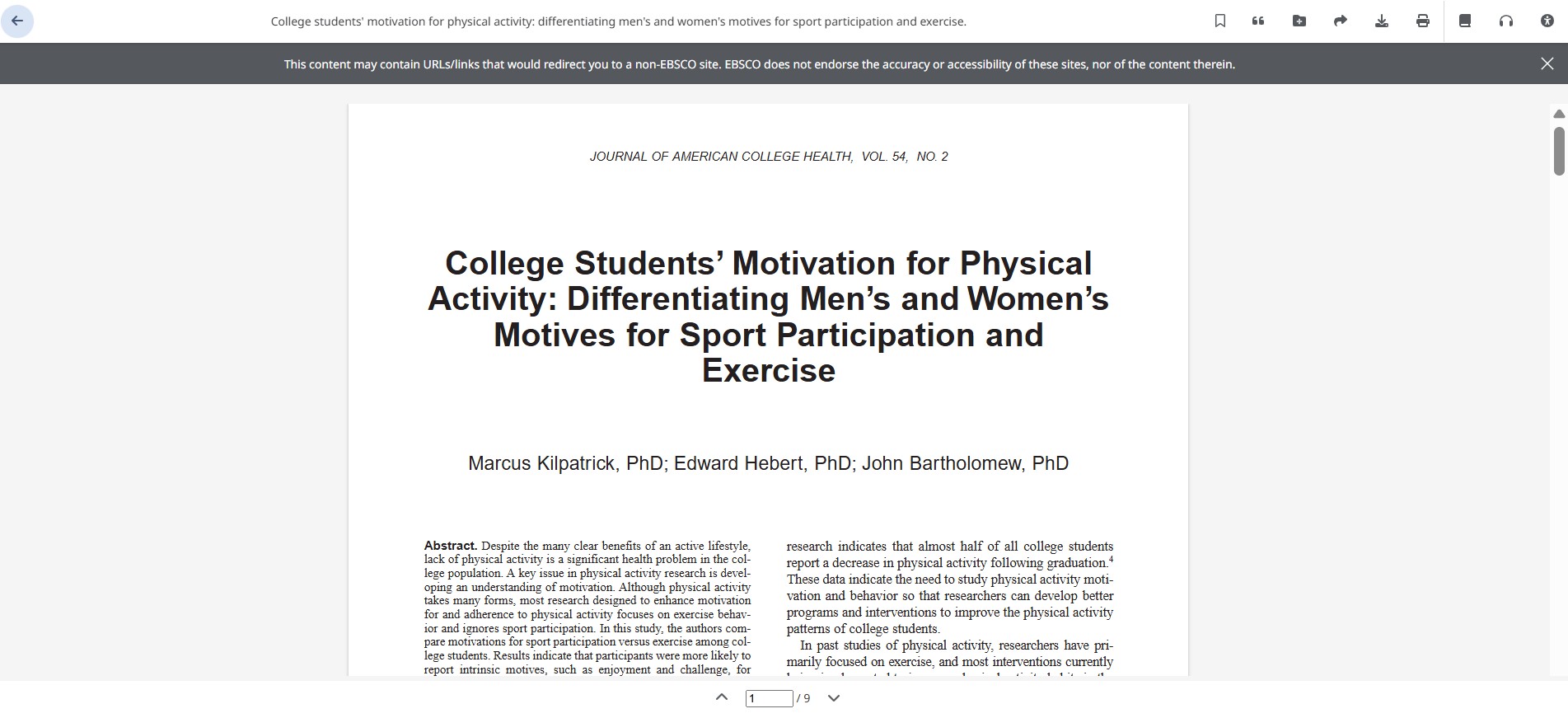
- Go to the SIM E-Resources page: https://primo.sim.edu.sg.
-
Select your user category.
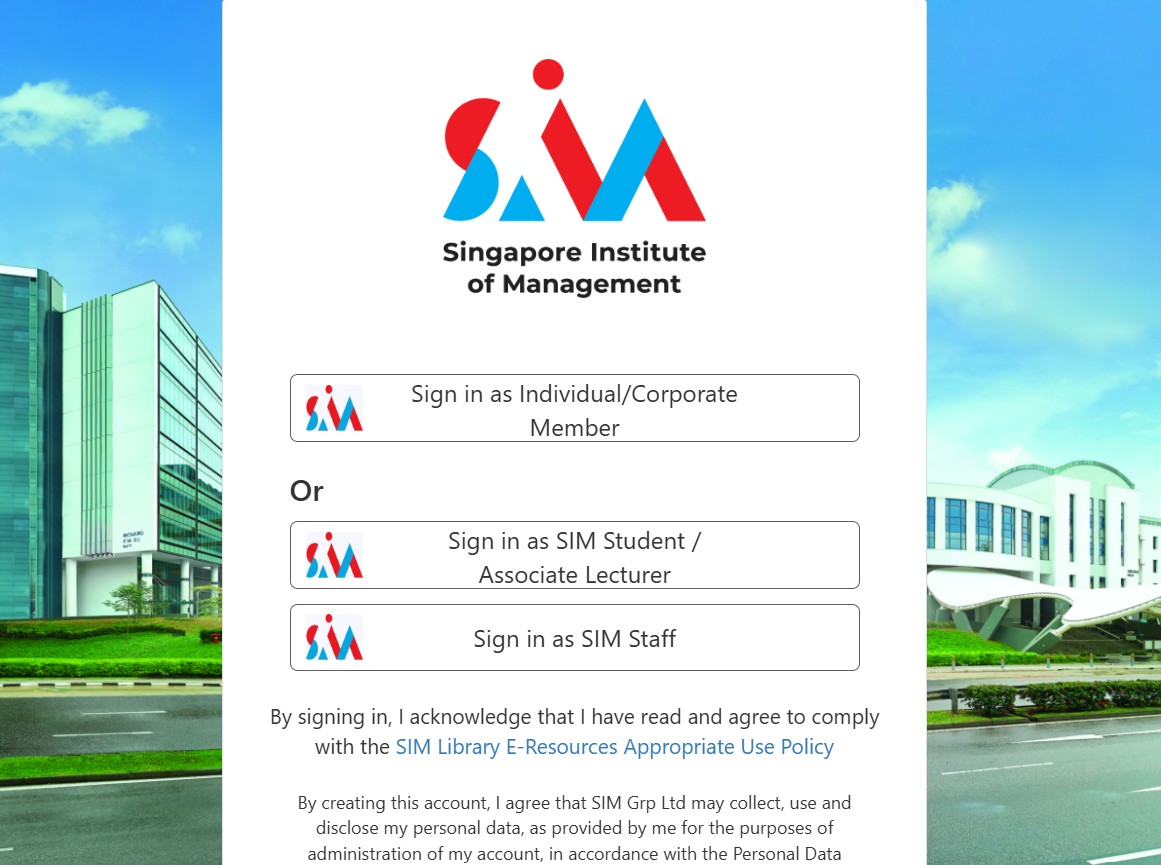
-
Sign in using your SIM email address and password (for example,
xxx001@mymail.sim.edu.sg).
Note: If prompted, follow the on-screen instructions to complete MFA (Multi-Factor Authentication).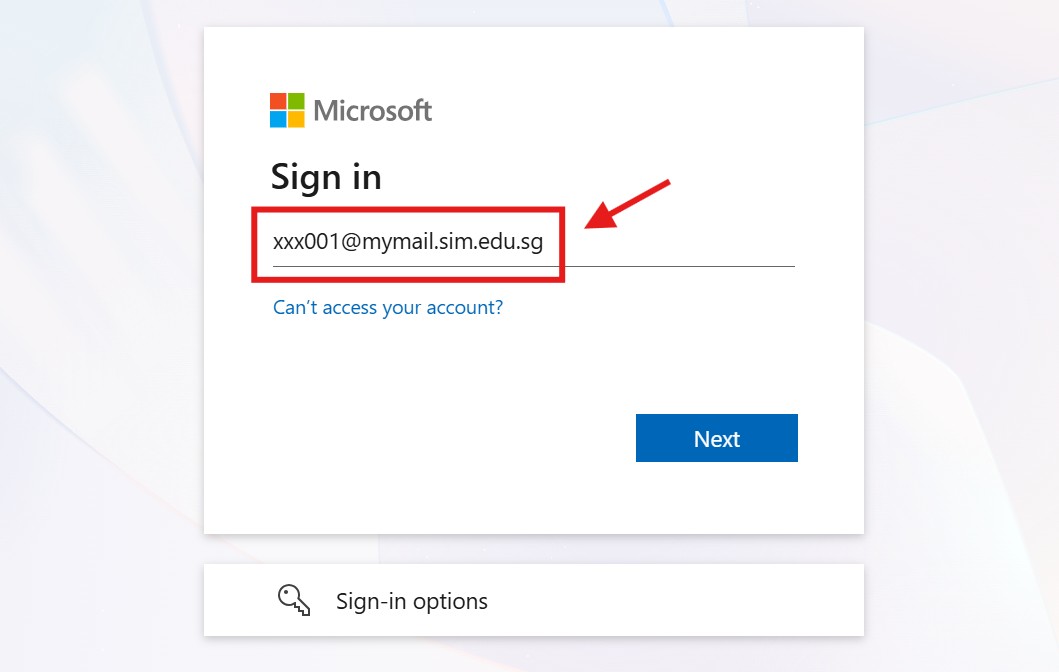
-
Click Academic Search Complete.

Basic Search
- Enter your keywords, question, or topic in the search box.
- Select Full Text to ensure that you can read or download the articles in full.
- Click Search.
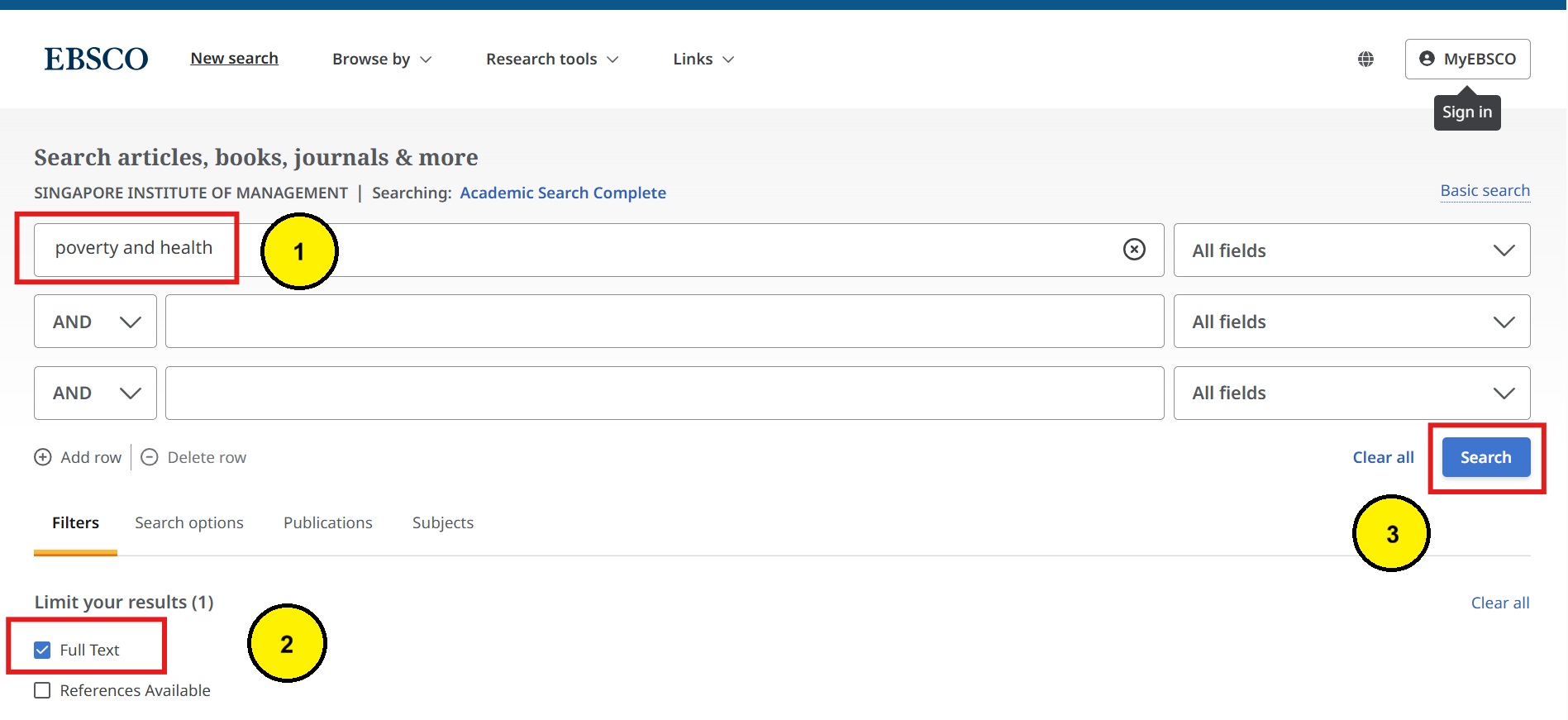
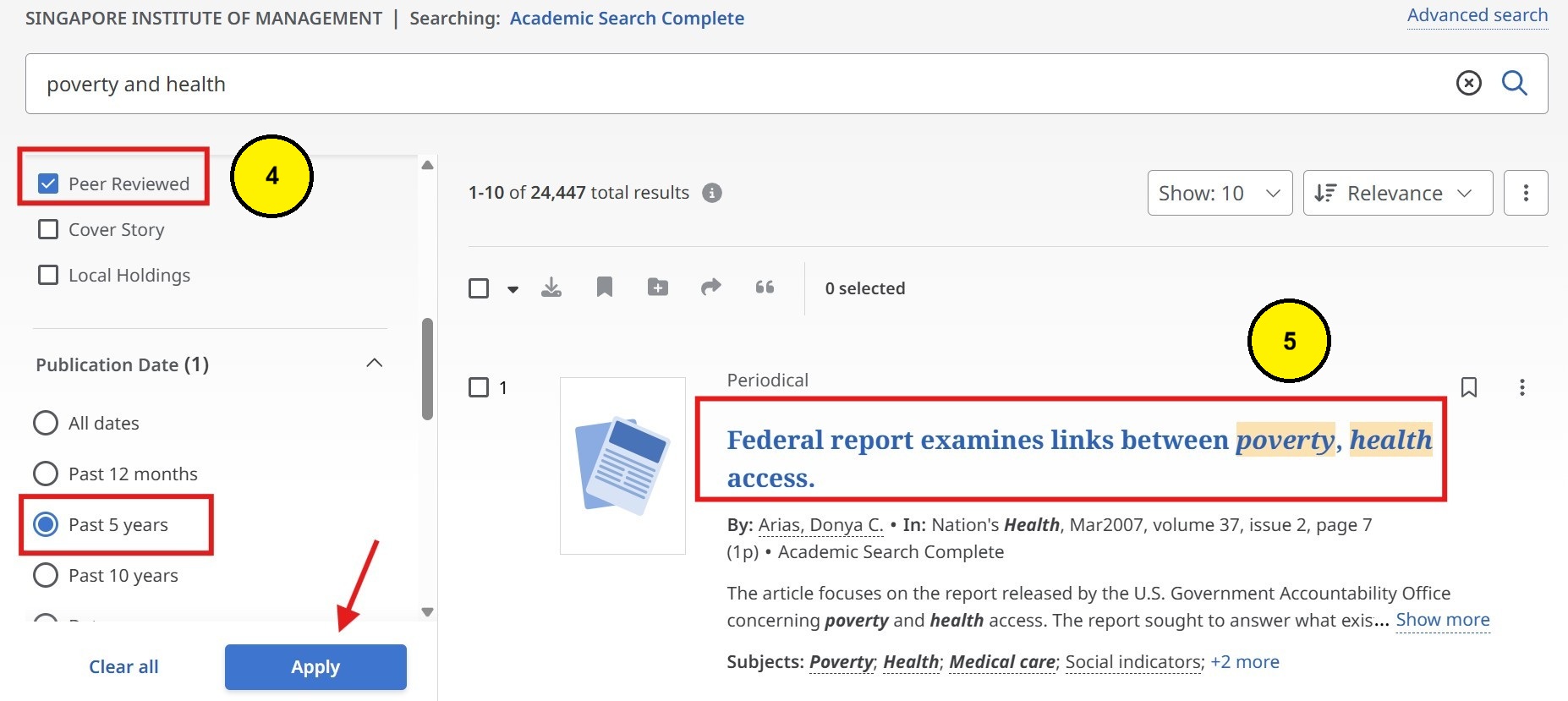
- Use the filters on the left to narrow your results. Then click Apply.
- Peer Reviewed – Limit results to articles reviewed by subject experts.
- Publication Date – For current research, select articles published within the last 5–10 years.
- Other Filters – Scroll down the menu to apply additional filters such as language.
- Click an article title to read, download, or view more details.
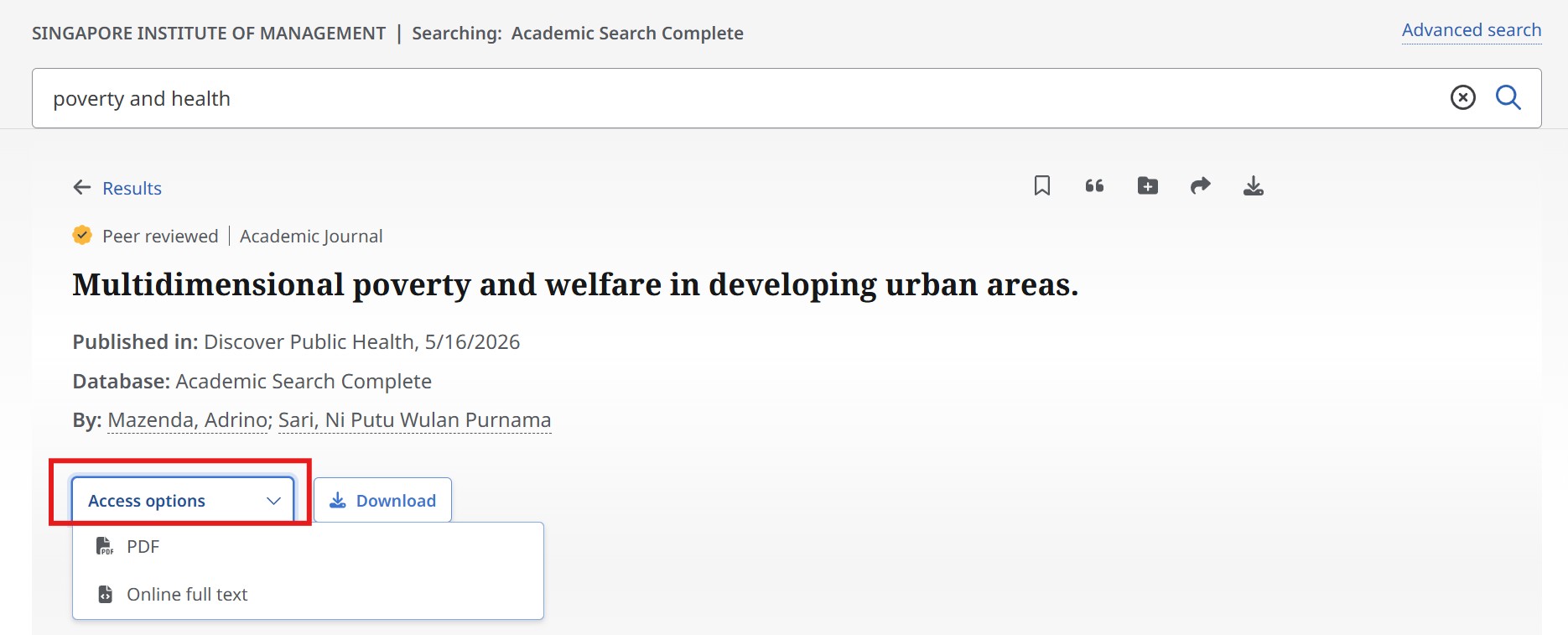
- Click Access Options to view the article in PDF or Online Full Text:
- PDF – View the article as it was printed in the journal.
- Online Full Text – Best for browsing on a mobile device or if you want to translate articles.
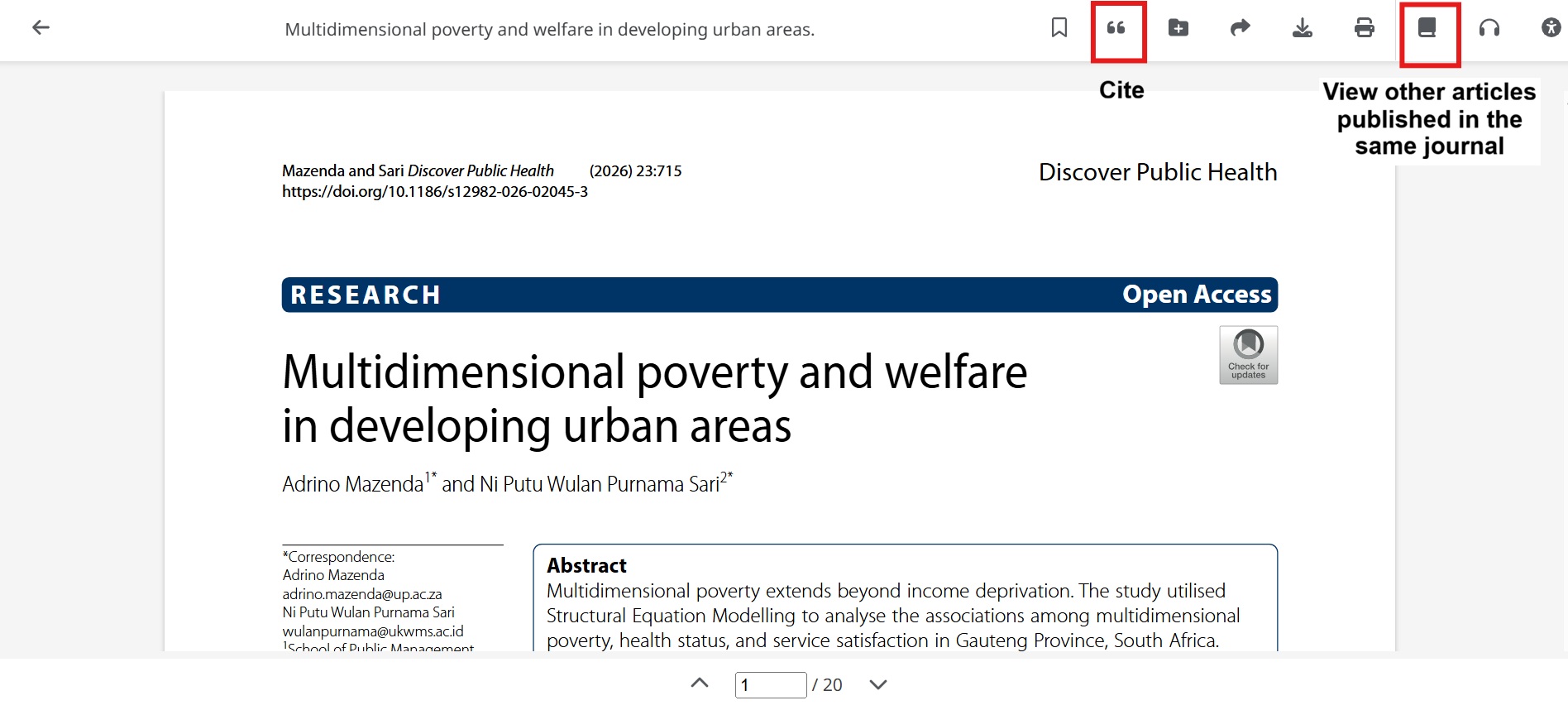
- At the top of each article, you will find a toolbar. Click the Cite icon to generate a citation, or click the Publications icon to find more articles from the same journal/publication.
Citations
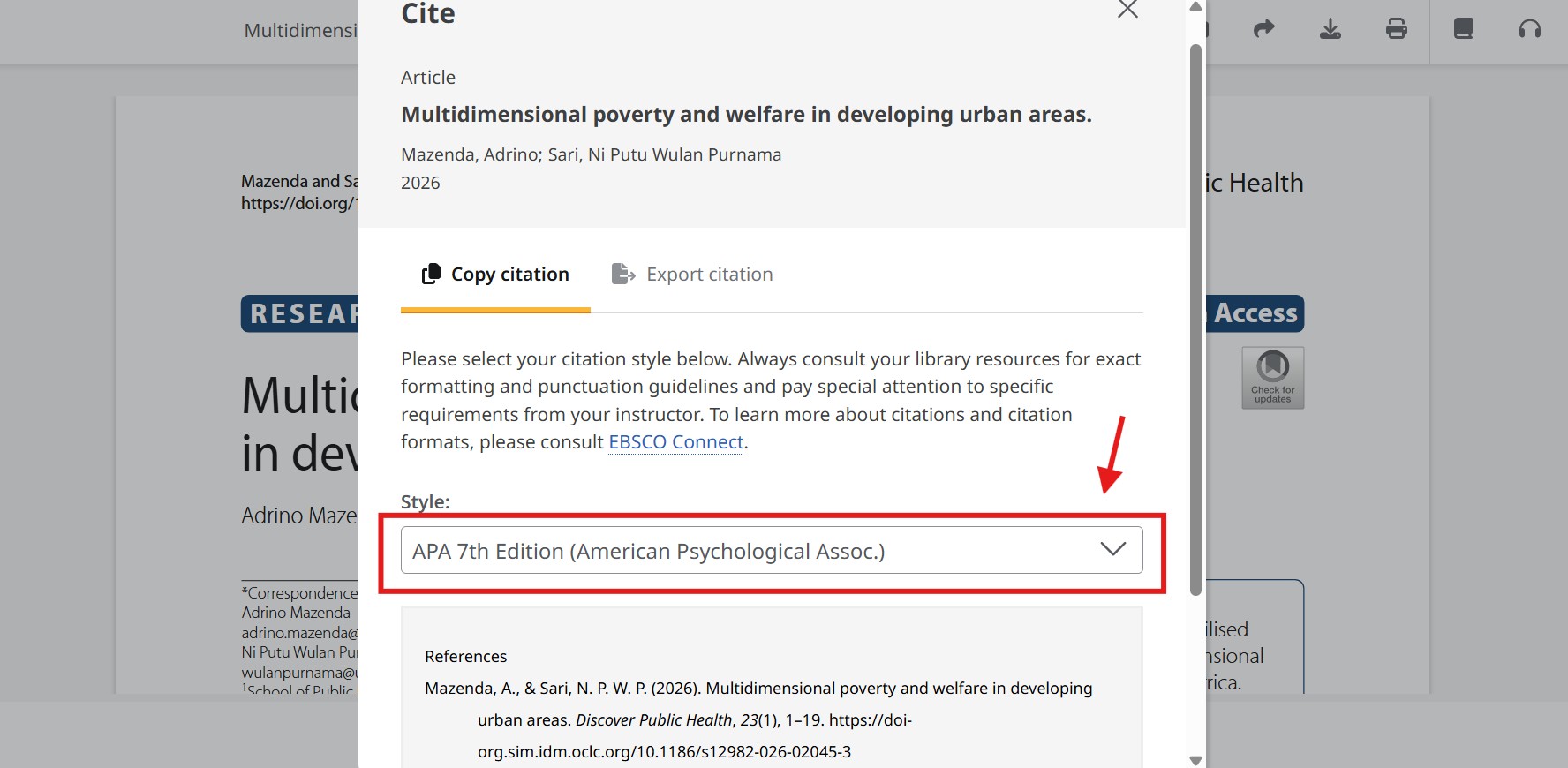
- Click the Cite icon
“(It looks like a double quotation mark). - Select a citation style such as APA.
- Always check the citation for accuracy when you use it in your assignment.
Watch the Video Tutorial
This video covers:
- Advanced search tips
- Getting citations
- Finding publications
AI-Assisted Search
-
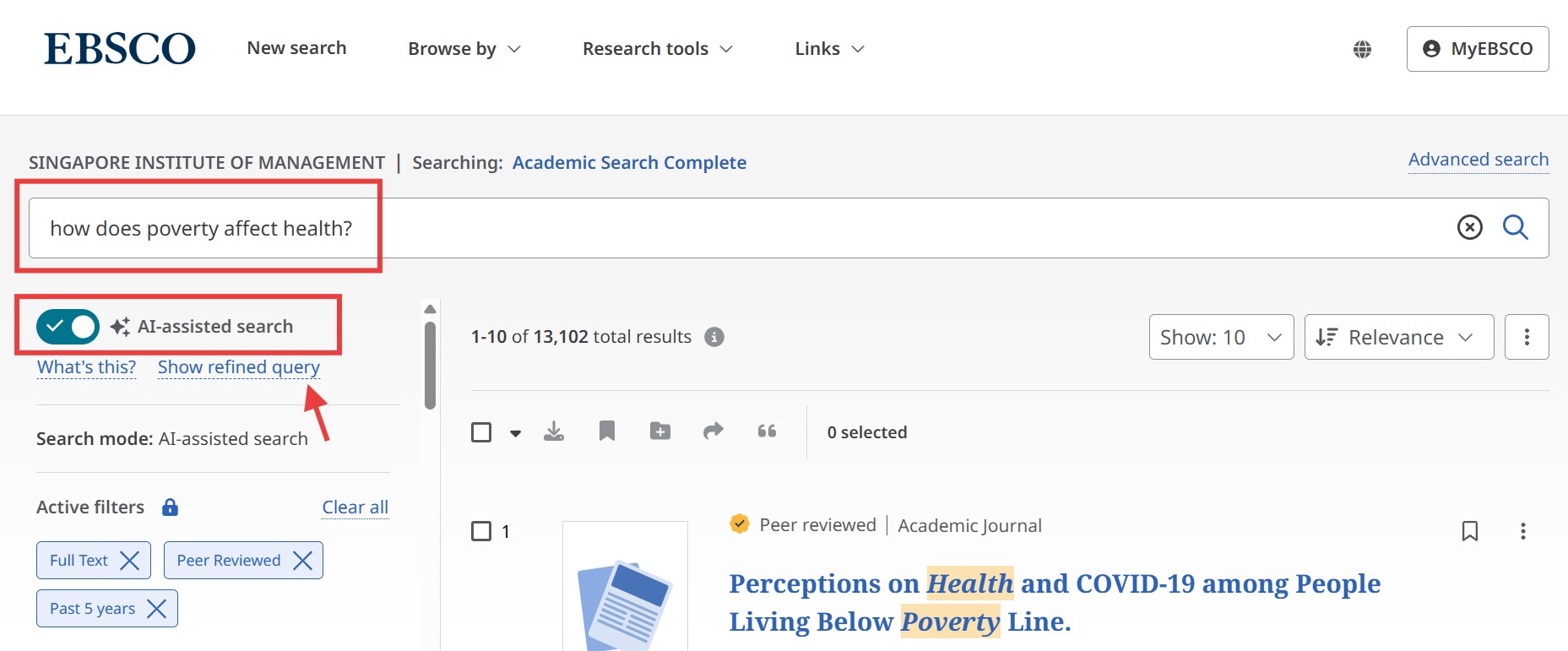
You can search Academic Search Complete by typing a question instead of keywords.
Example:How does poverty affect health?instead ofpoverty AND health - To search using keywords only, turn off AI-Assisted Search.
-
The database uses AI to find relevant articles. Click Show refined query to see the search terms used.
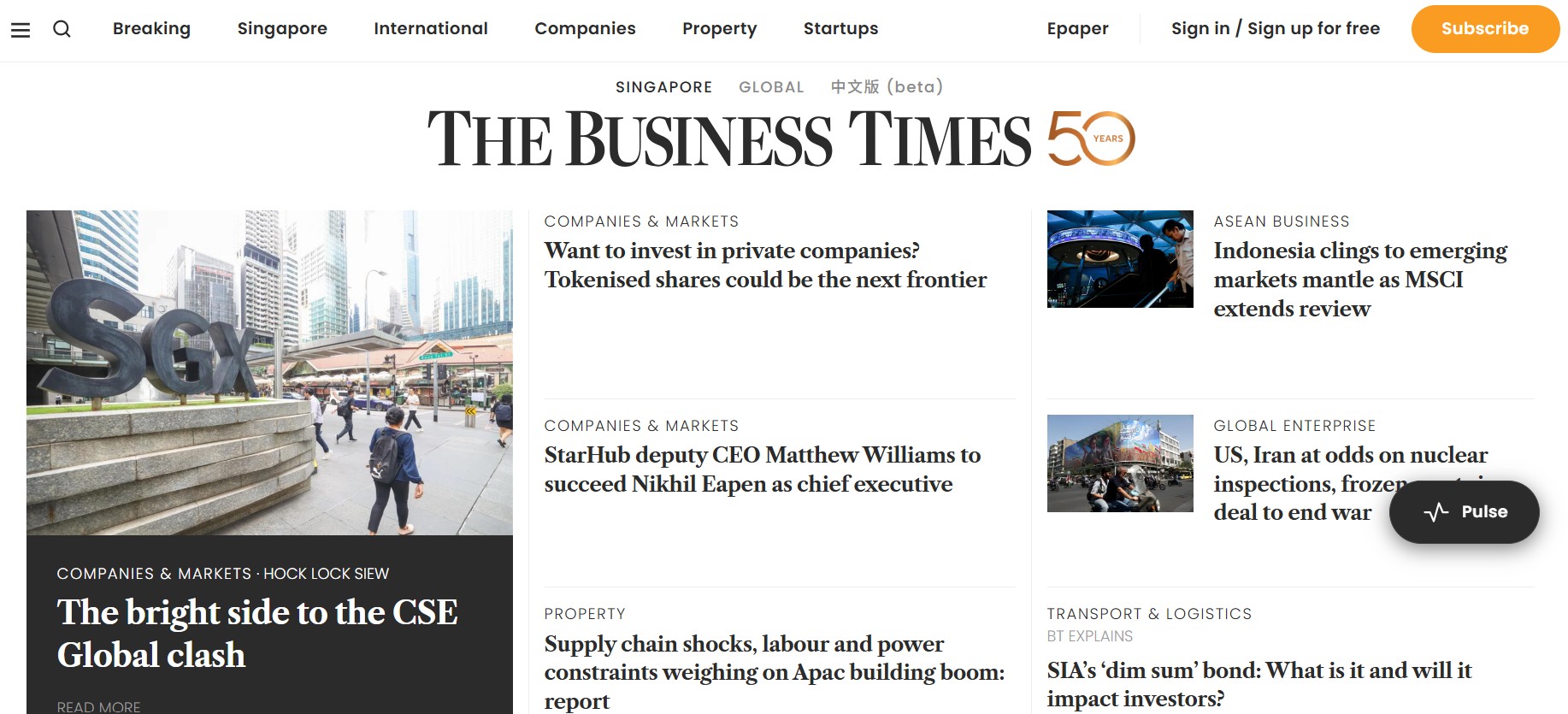
The Business Times
The Business Times is a daily newspaper published in Singapore. It covers local and international business news, market updates, and industry insights.
Note: The e-paper shows issues from the last 14 days only. Use the Search feature to find older articles.
• Website: Up to 20 users at a time
• App: Up to 20 users
If the website reaches its access limit, the user who signed in first will be logged out automatically.
Need help? Email libenQ@sim.edu.sg.
- Go to the SIM E-Resources page: https://primo.sim.edu.sg.
-
Select your user category.
-
Sign in using your SIM email address and password (for example,
xxx001@mymail.sim.edu.sg).
Note: If prompted, follow the on-screen instructions to complete MFA (Multi-Factor Authentication).
-
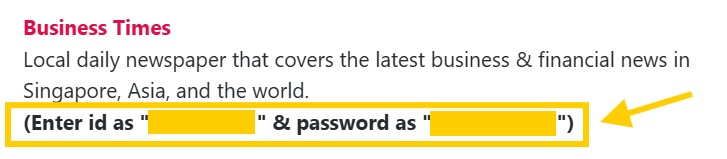
Note down the ID and password (blanked out in yellow), then click on The Business Times.
-
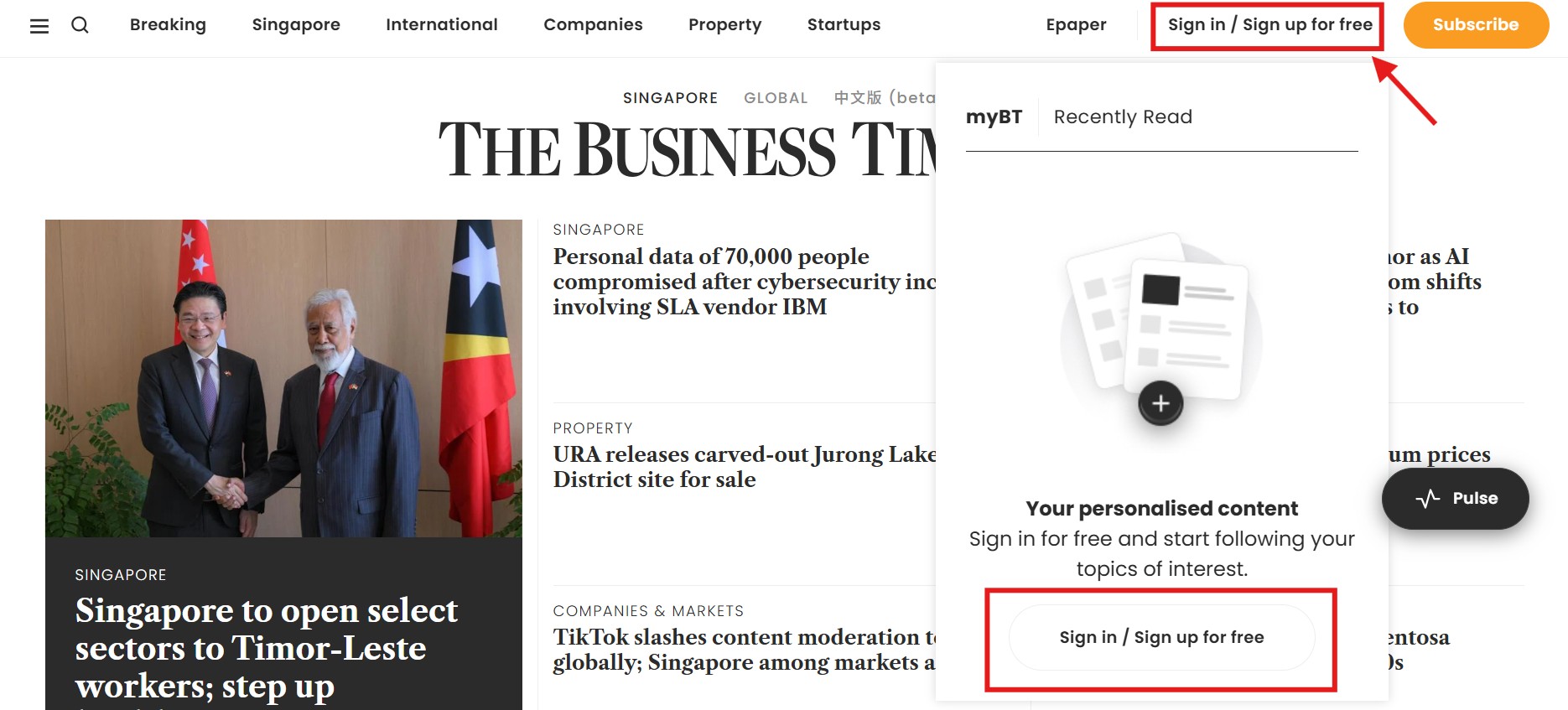
At the top-right of The Business Times page, click Sign in / Sign up for free. If a pop-up appears, scroll down to find the sign-in button.
-
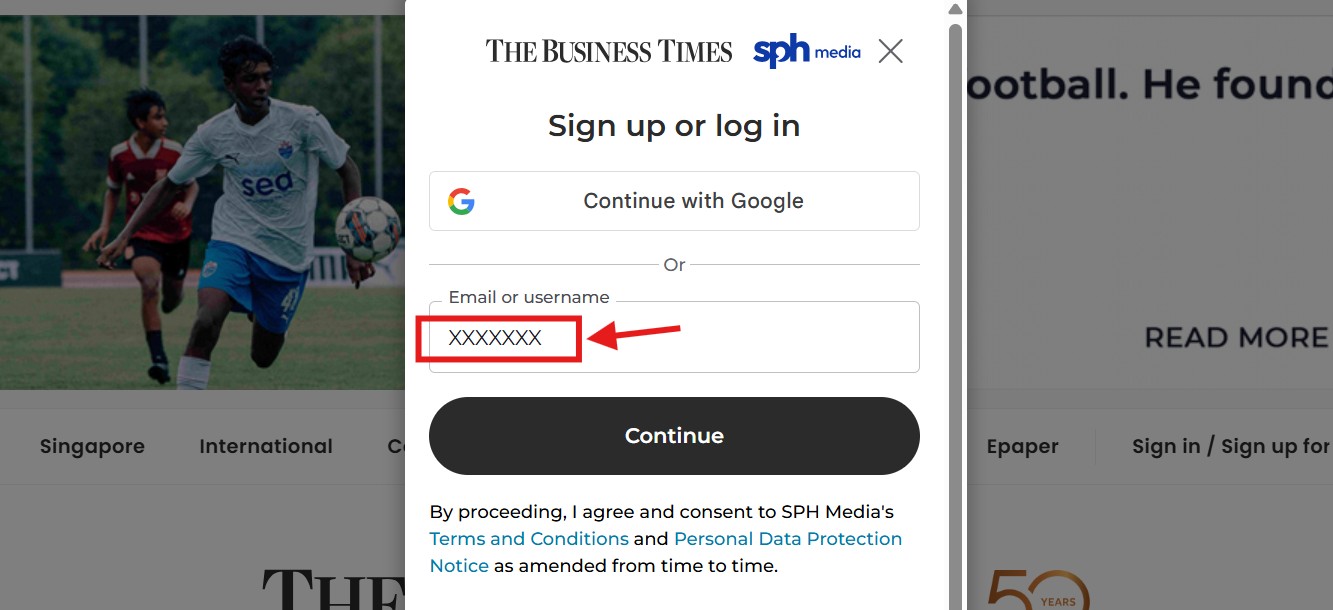
Enter the ID you noted earlier and click Continue. Then enter the Password to sign in.
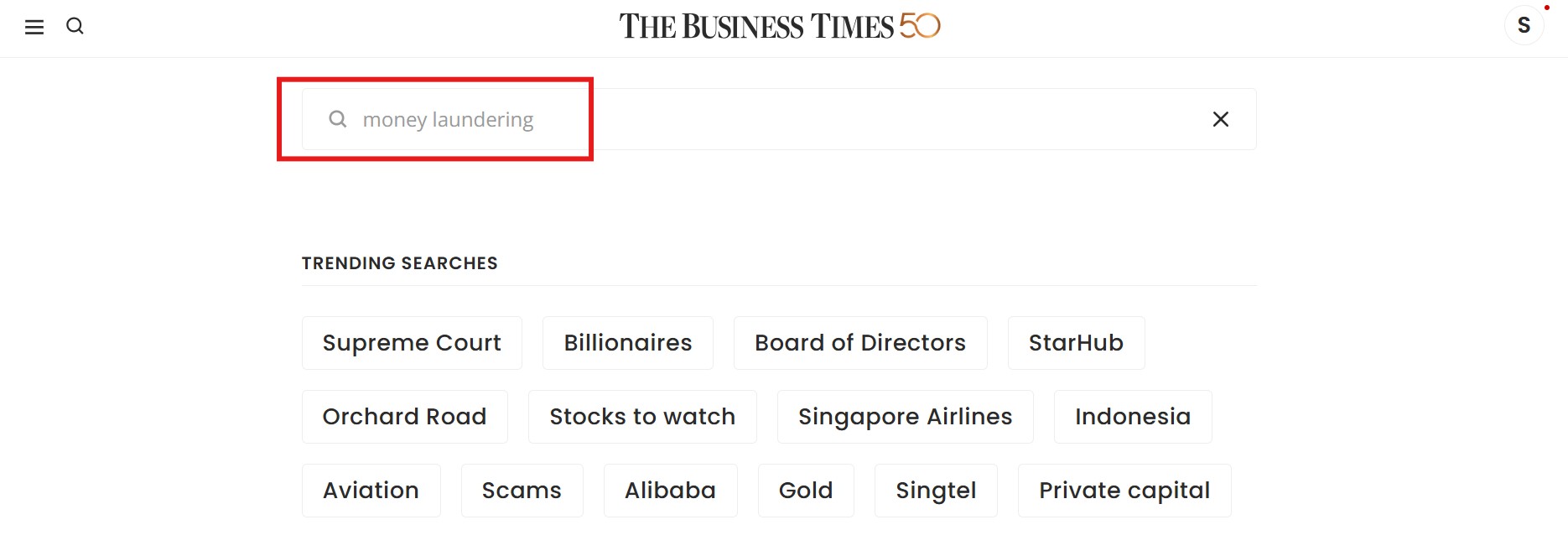
After signing in, click the magnifying glass icon to start searching.

Type in your search terms and press Enter.
Watch the Video Tutorial
EMIS
EMIS (Emerging Markets Information Systems) is an award-winning database focused on emerging markets. It provides professional research, analysis, data, and news on companies, industries, and countries worldwide.
Note: Only 10 concurrent users can access EMIS at any one time.
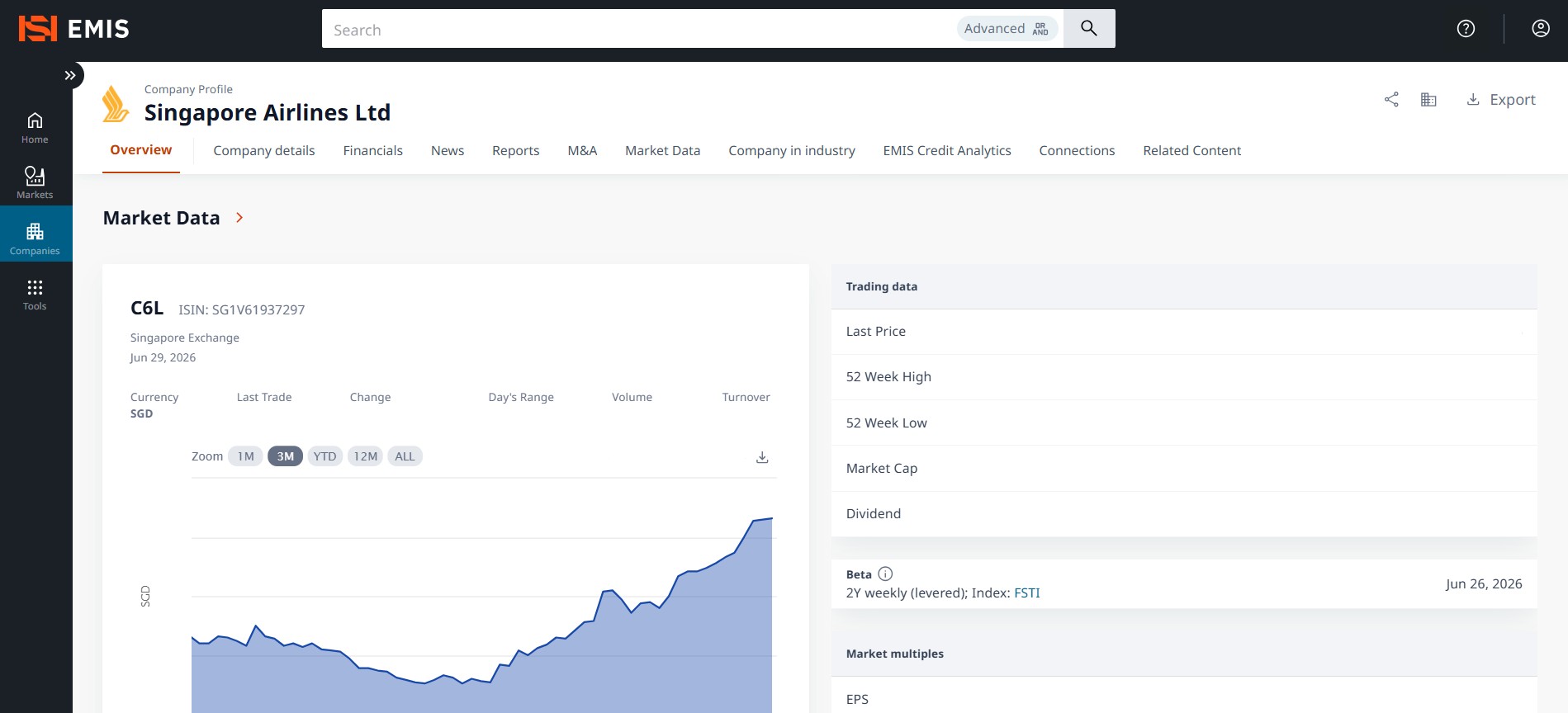
Company Profile (Singapore Airlines)
Need help?
You can contact EMIS Support directly.
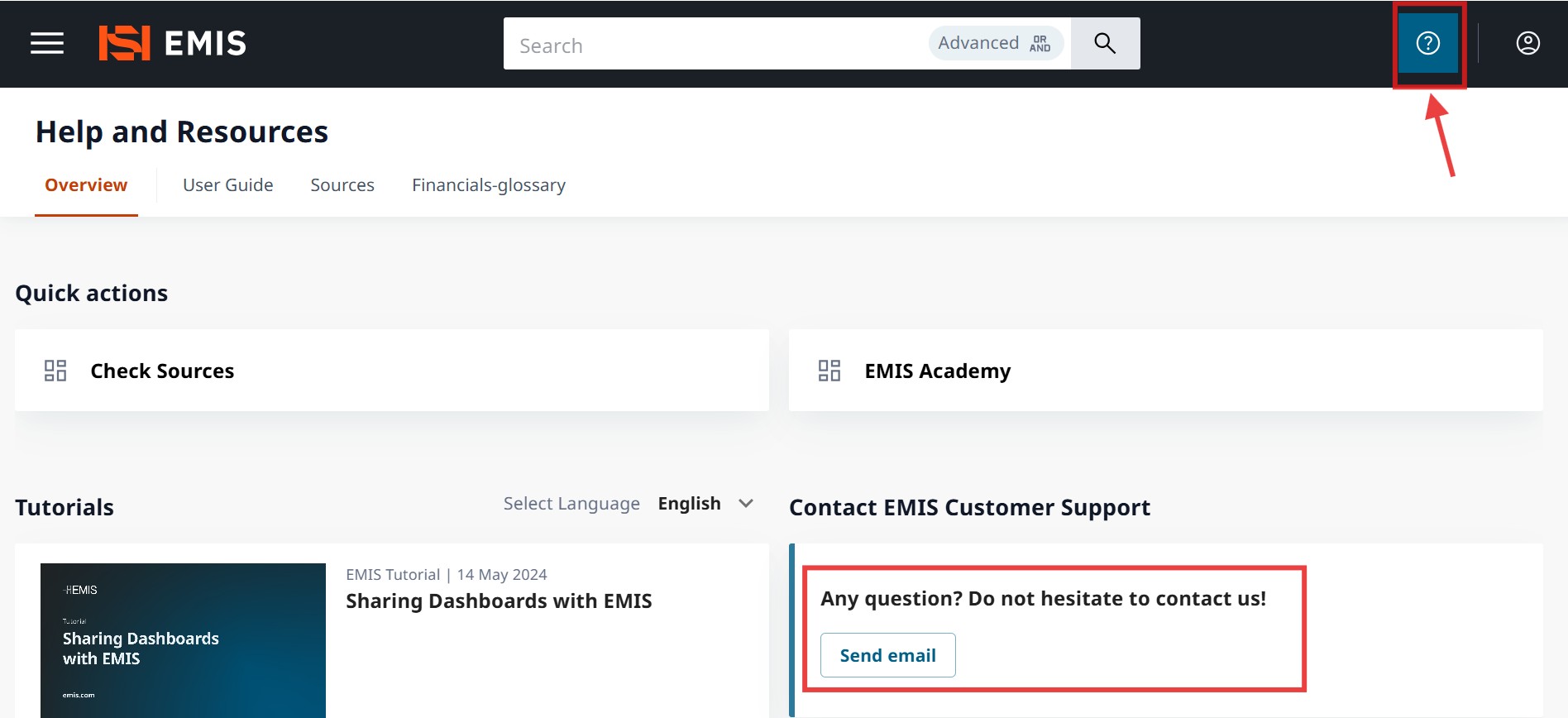
For example, if you cannot find a report, click the question mark (?) at the top right of the page. Then click Send Email.
You can also email SIM Library at libenQ@sim.edu.sg.
- Go to the SIM E-Resources page: https://primo.sim.edu.sg.
-
Select your user category.
-
Sign in using your SIM email address and password (for example,
xxx001@mymail.sim.edu.sg).
Note: If prompted, follow the on-screen instructions to complete MFA (Multi-Factor Authentication).
-
Click EMIS.
-
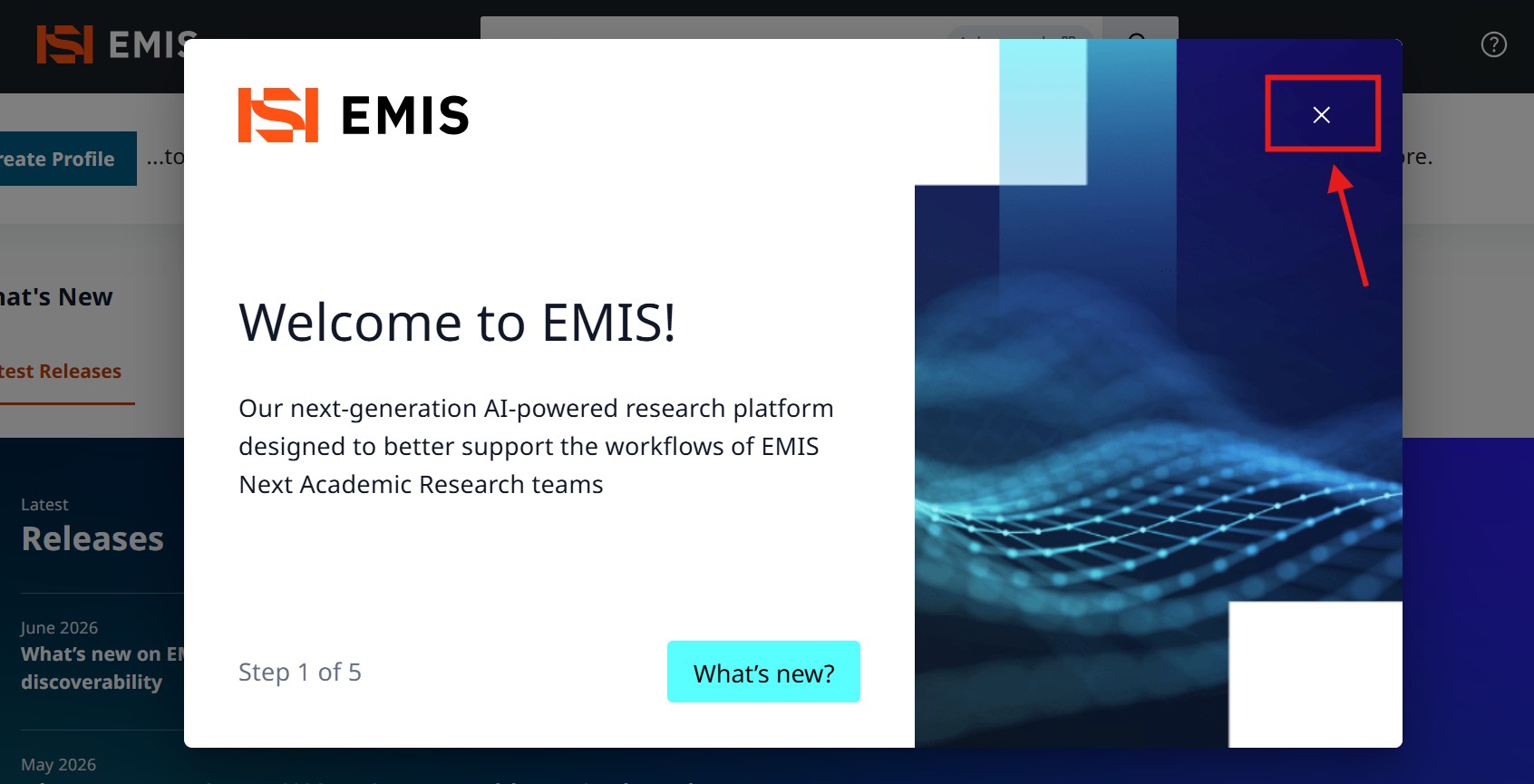
Once you are signed in, find the X button to close the pop-up.
Basic Search
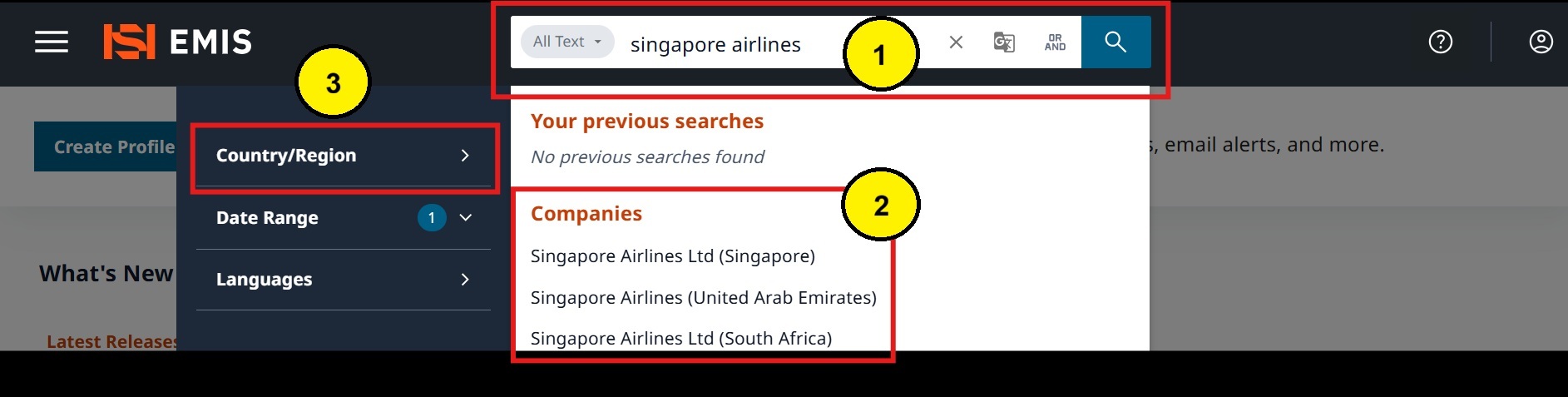
- Type the name of a company, industry, or country in the search bar.
- Select one of the suggested results.
- Use the filters on the left to refine your search.
Quick Links
These quick links take you directly to selected report collections on EMIS.
Sign in to EMIS first before clicking on them.
Industry overviews, trends and forecasts.
Country profiles and PESTLE analysis.
Watch the Video Tutorial
Factiva
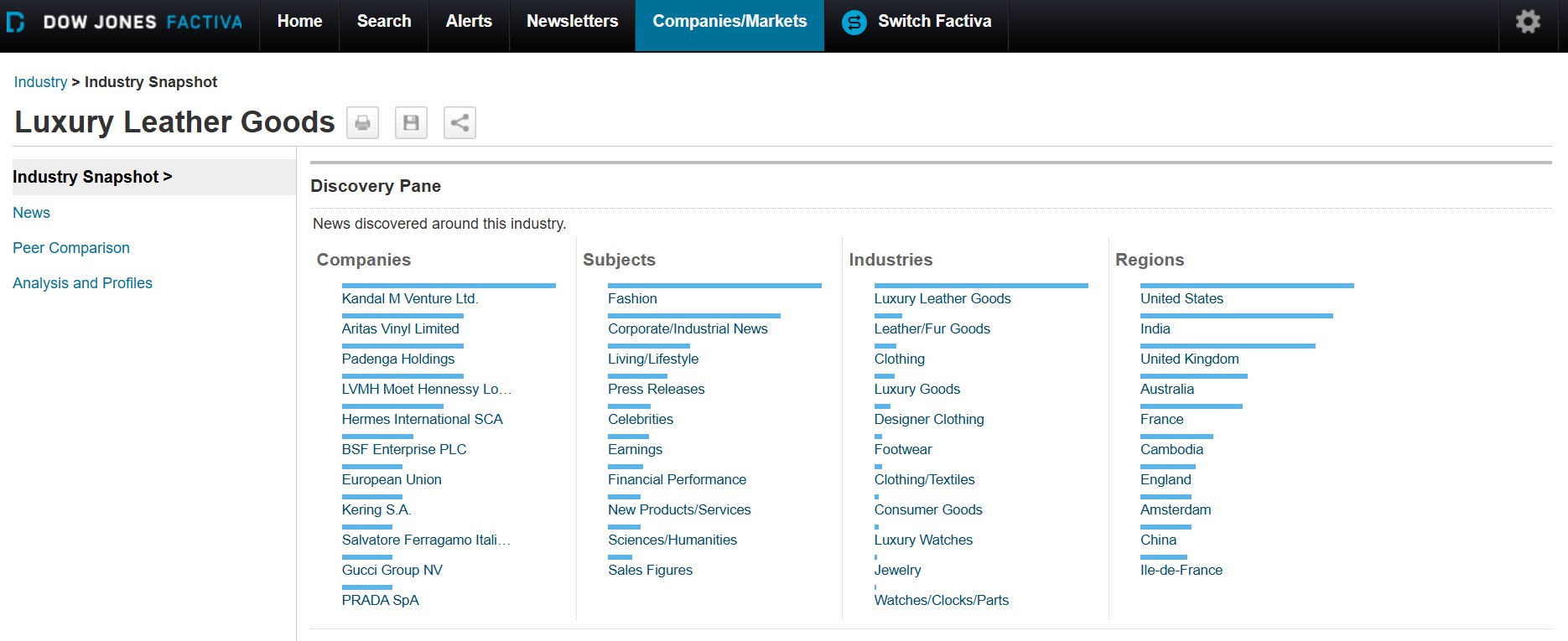
Factiva provides over 30,000 sources of international news. This includes newspapers, newswires, industry publications, websites, company financials, reports, and more.
- Go to the SIM E-Resources page: https://primo.sim.edu.sg.
-
Select your user category.
-
Sign in using your SIM email address and password (for example,
xxx001@mymail.sim.edu.sg).
Note: If prompted, follow the on-screen instructions to complete MFA (Multi-Factor Authentication).
-
Click Factiva.

New Interface
Factiva has two interfaces: Classic and New. You will see the Classic interface when you sign in.
Click Switch Factiva to change to the New interface.

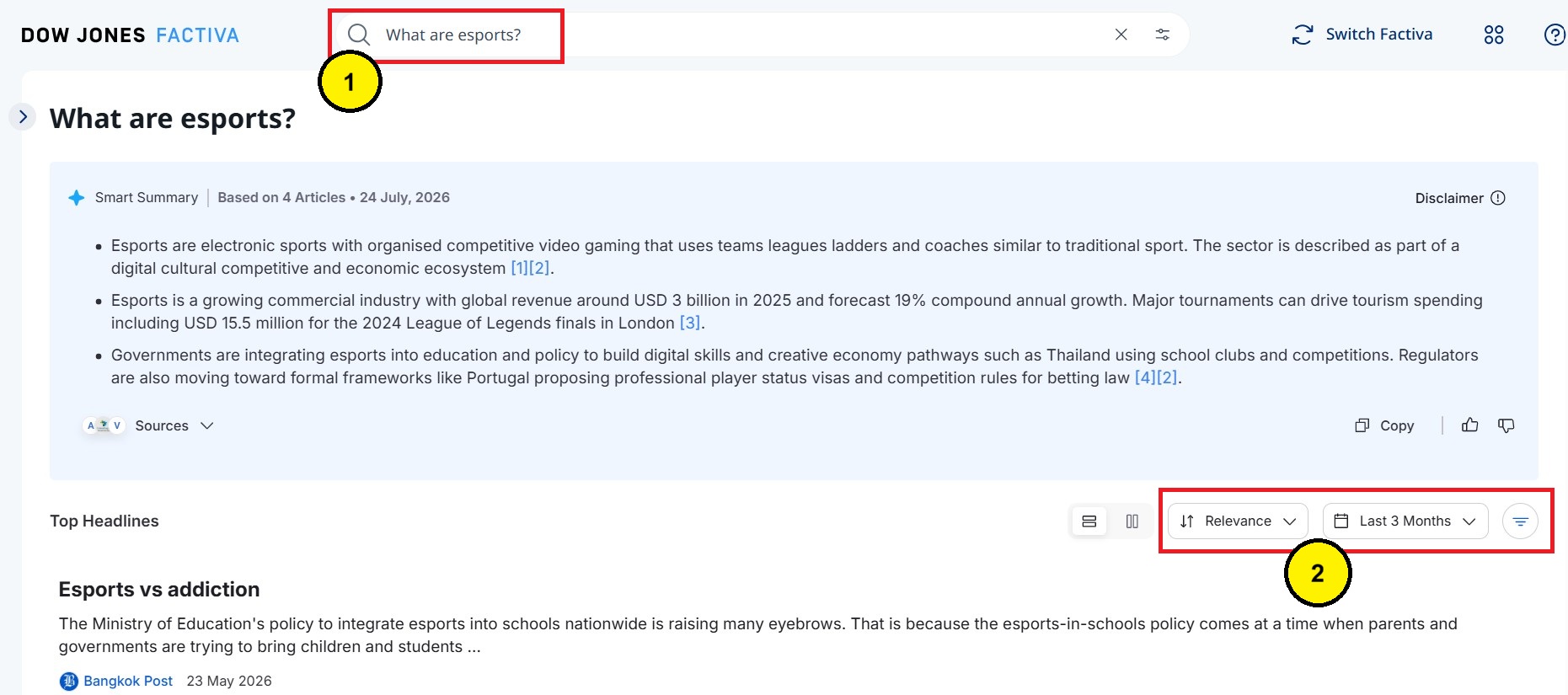
Search with Natural Language
The new interface lets you search by asking questions instead of only keywords.
• What are esports?
• Singapore Airlines
• Electric vehicle industry
- Enter your search in the search box. Factiva will display the most relevant news articles.
- Use the filters to refine your results.
Overview (Classic Interface)
Factiva has two interfaces: Classic and New. You will see the Classic interface when you sign in.
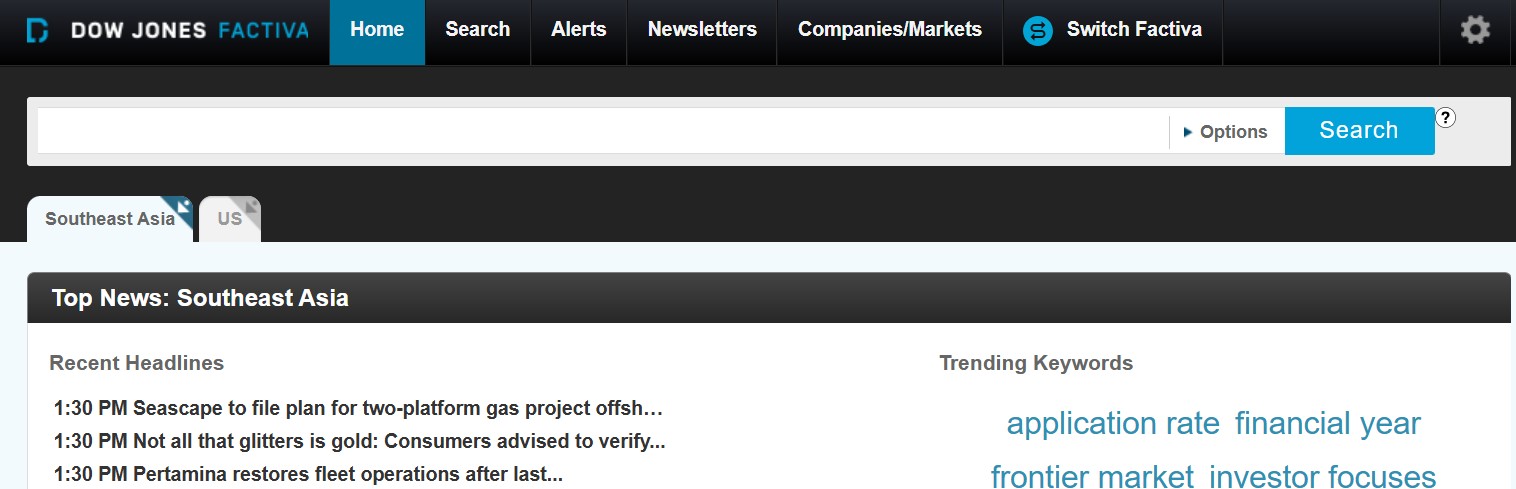
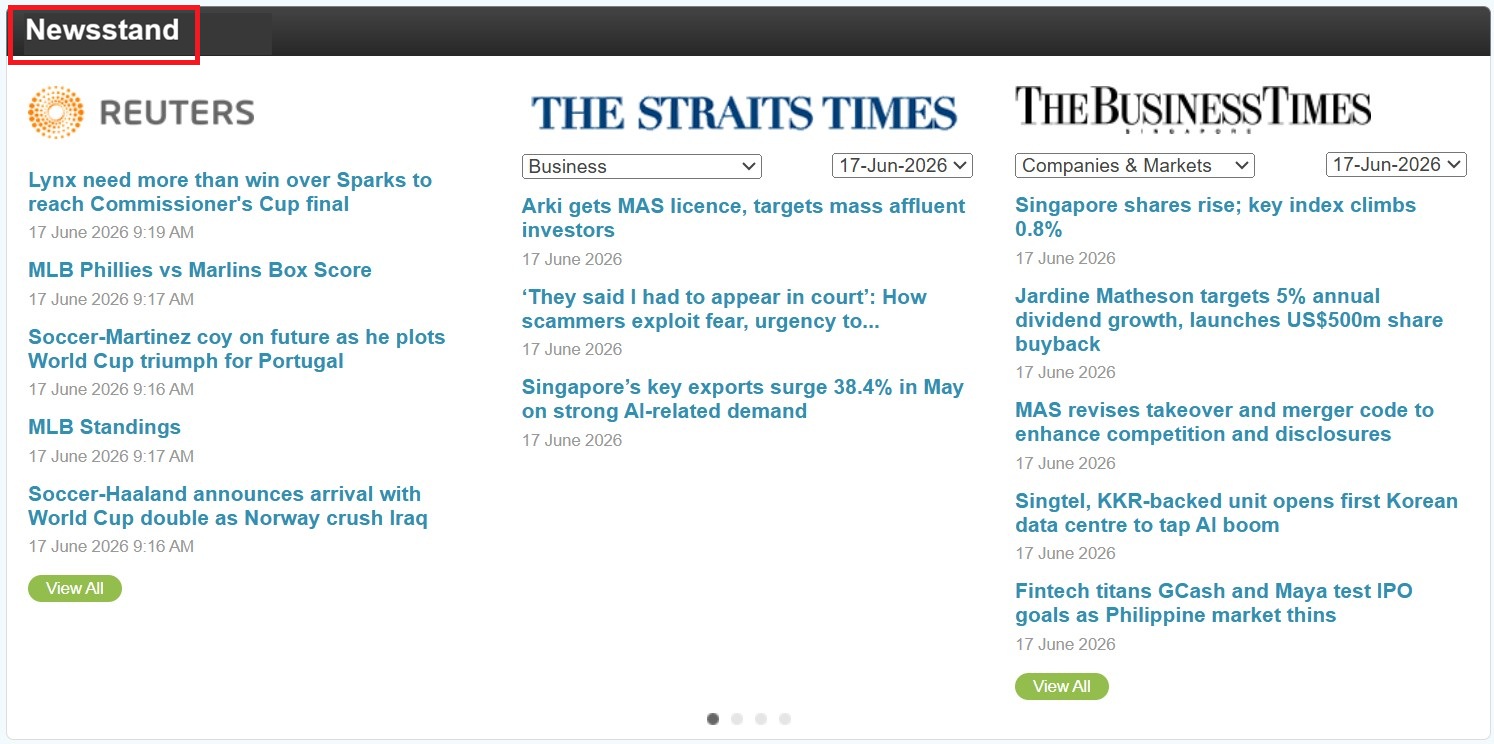
Scroll down the Factiva landing page to view the Newsstand.
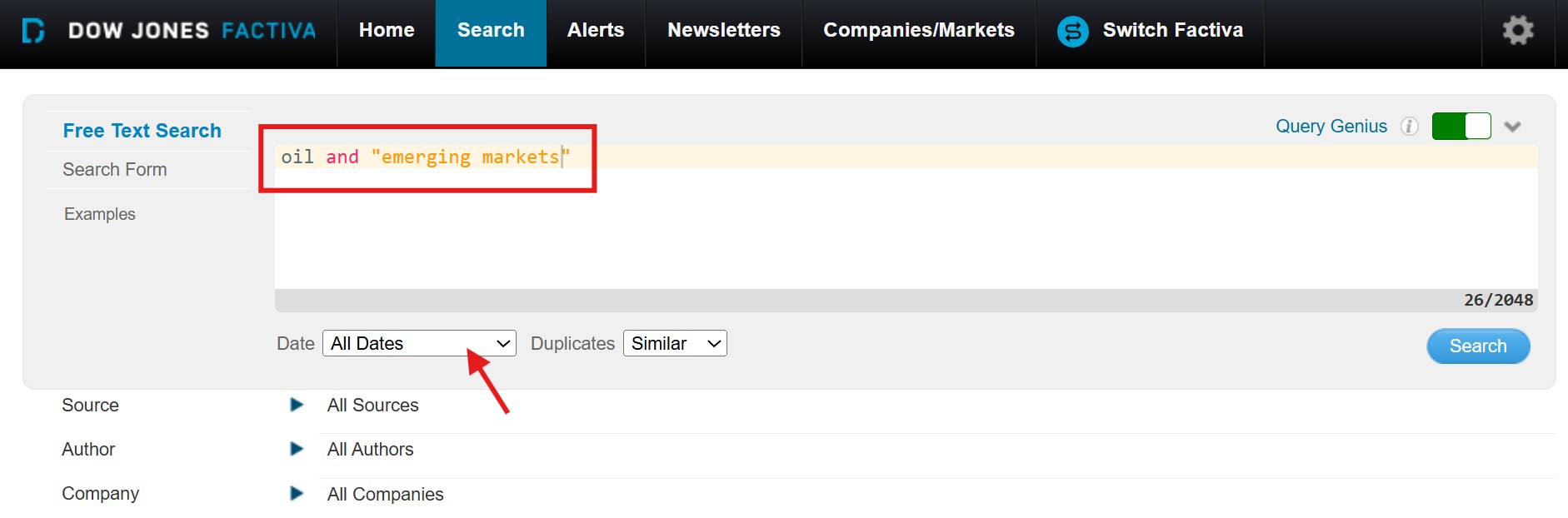
Search by Keyword
1. Click Search or Search Builder.

2. Enter your keywords to find articles.
3. Select the date range. Then click Search.
Search Tips
- Use quotation marks to find exact words or phrases (e.g. “Albert Einstein”; “ate and left no crumbs”)
- Join keywords with Boolean operators (AND, OR, NOT)
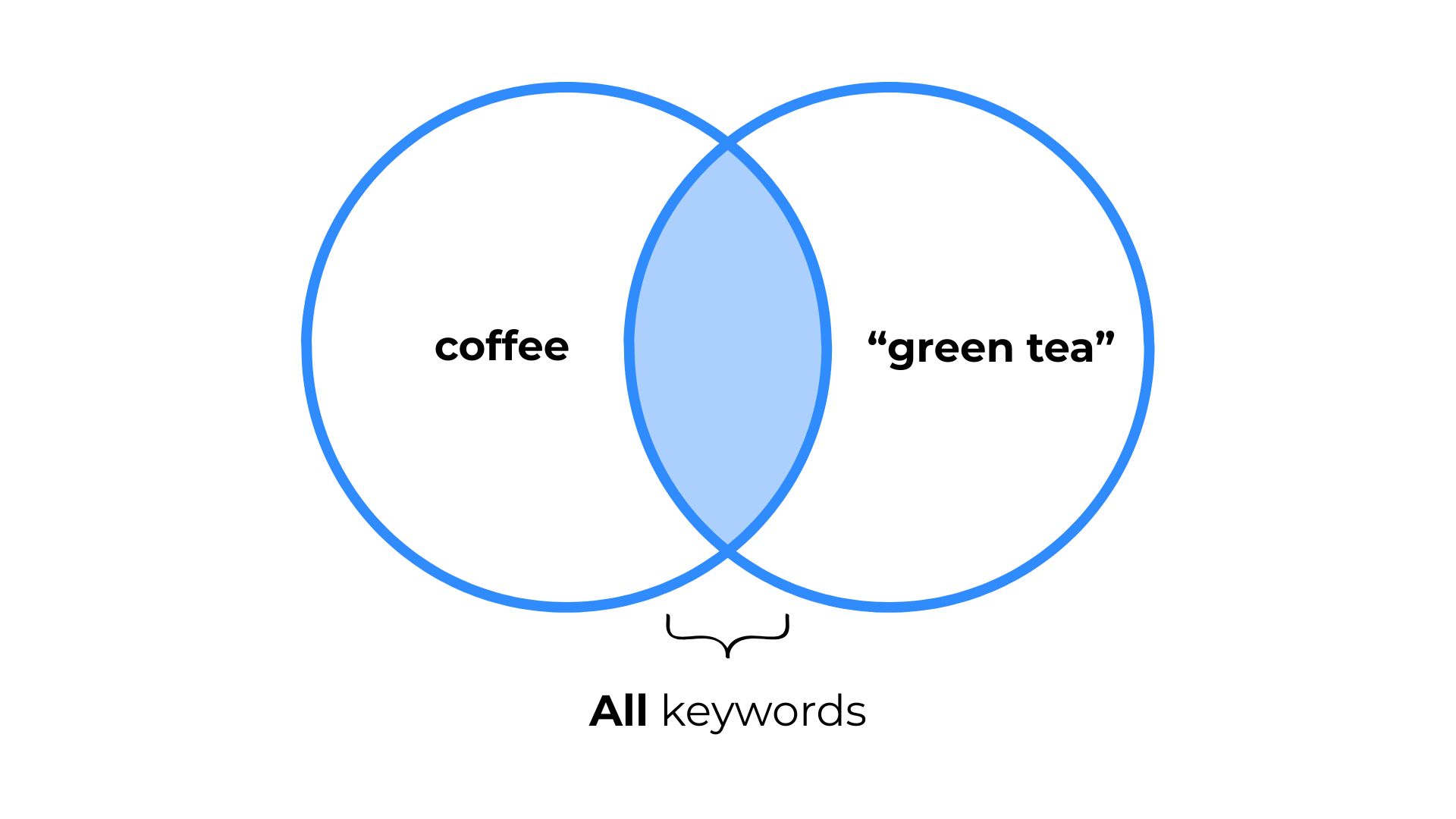
AND – Find results that contain all your keywords.
Example: coffee AND "green tea"
✓ Results contain both Coffee and Green tea.
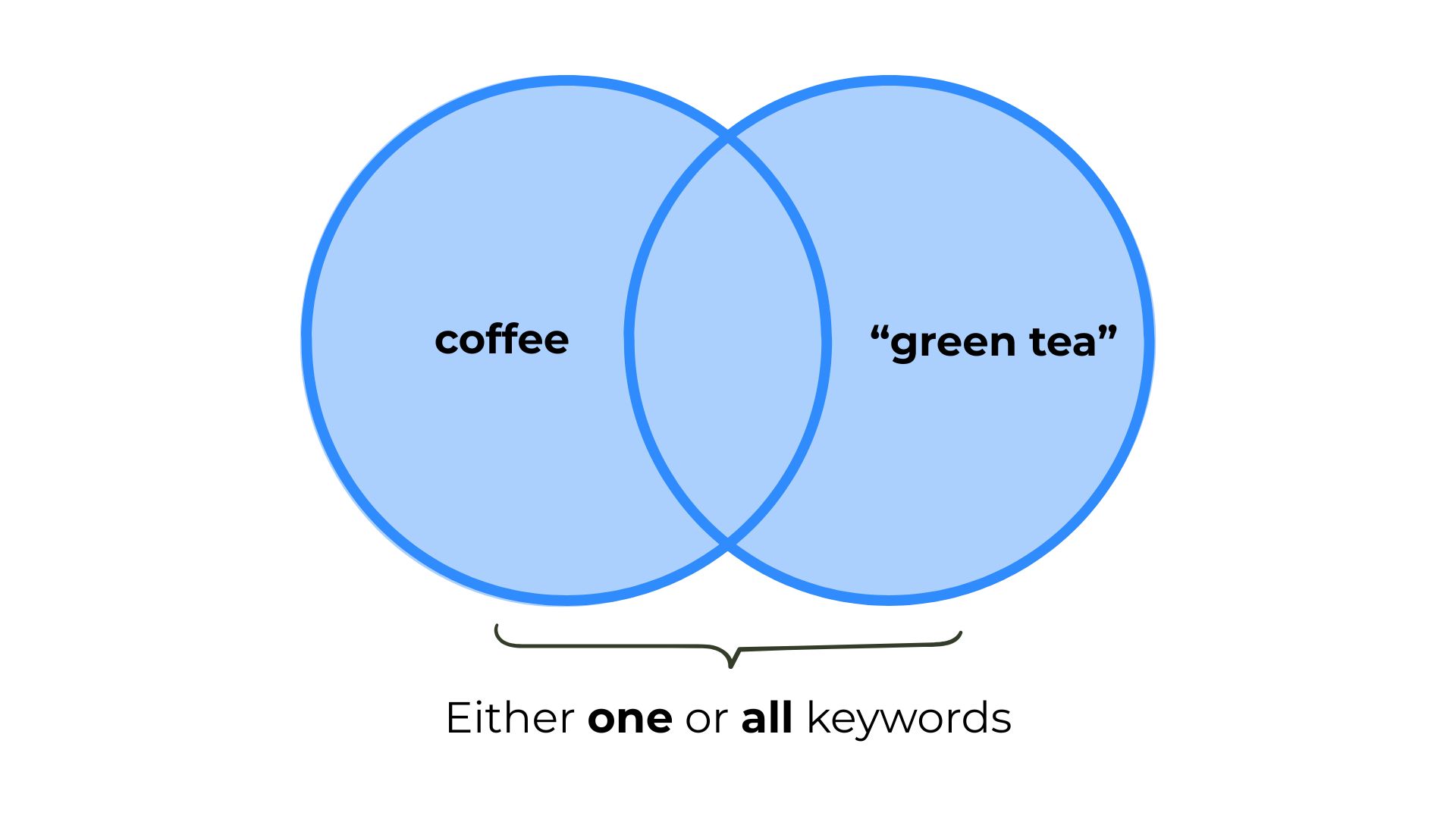
OR – Find results that contain either one or all of the keywords.
Example: coffee OR "green tea"
✓ Results contain Coffee, Green tea, or both.
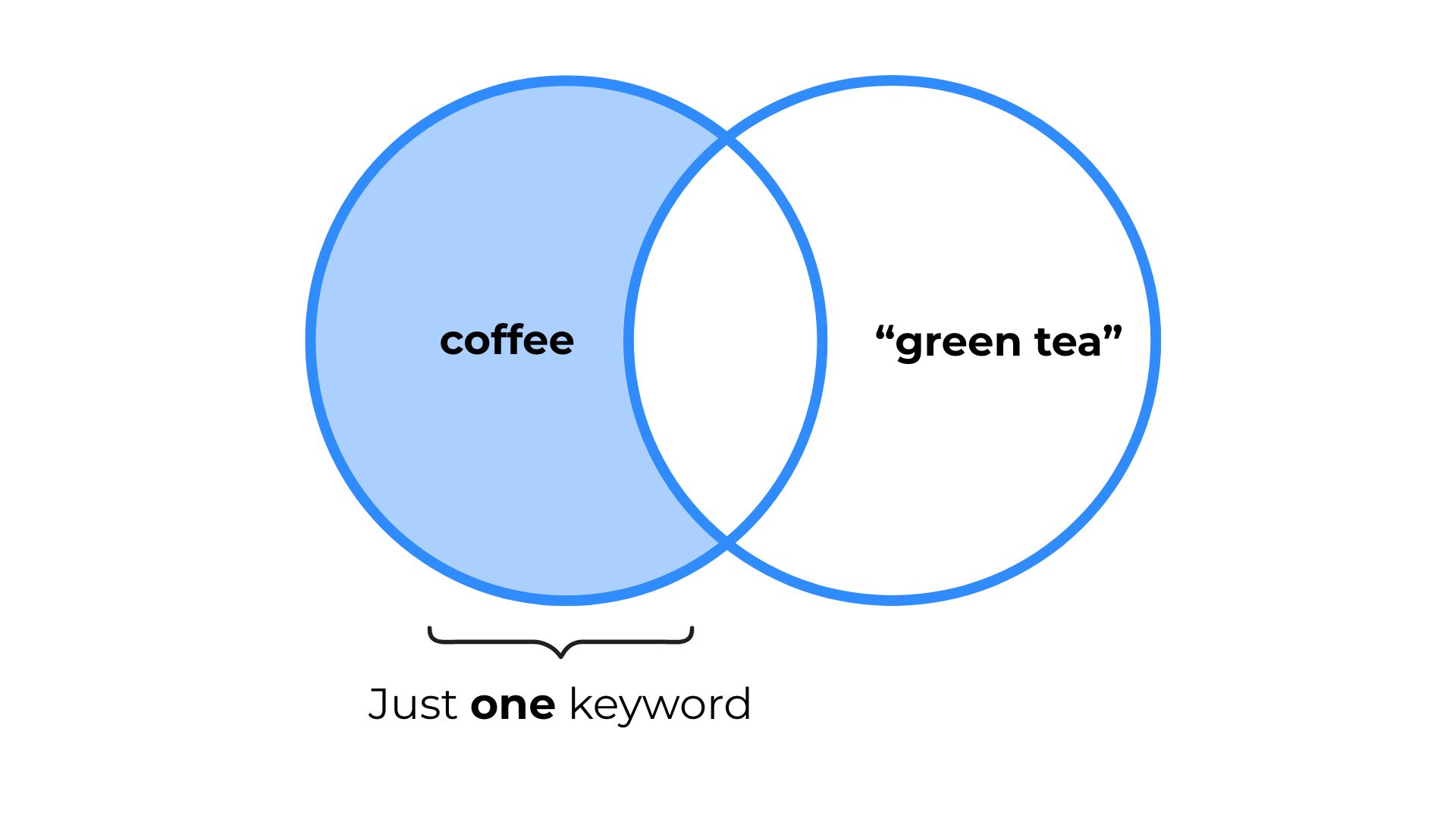
NOT – Exclude words you do not want in your results.
Example: coffee NOT "green tea"
✓ Results contain Coffee.
✗ Results do not contain Green tea.
Search by Publication
Use the filters below the search box to narrow your search results.
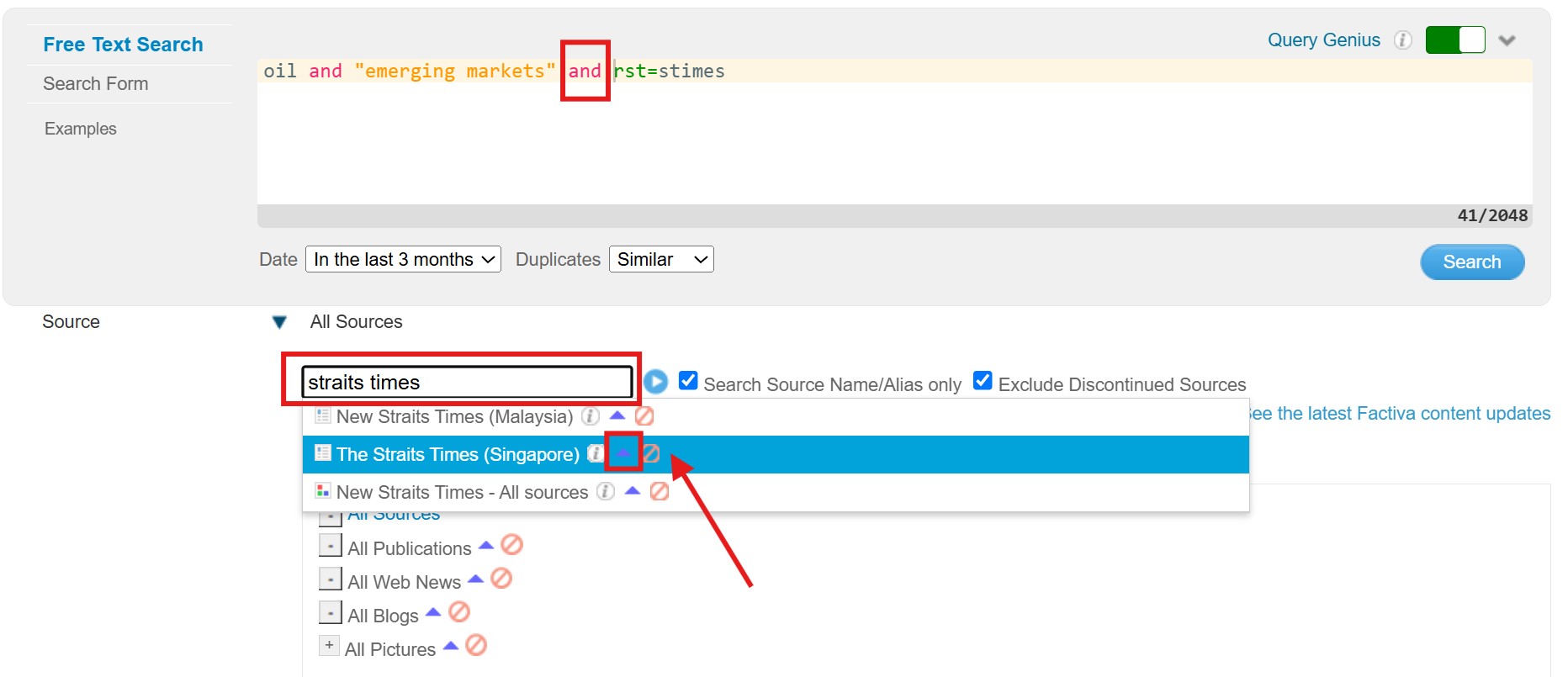
To find articles from a specific publication:
- Enter your search terms in the search box. Then type AND.
- Click Source and enter the publication name (for example, The Straits Times).
- Click the blue arrow to add the publication to your search. Then click Search.
Find Company Information
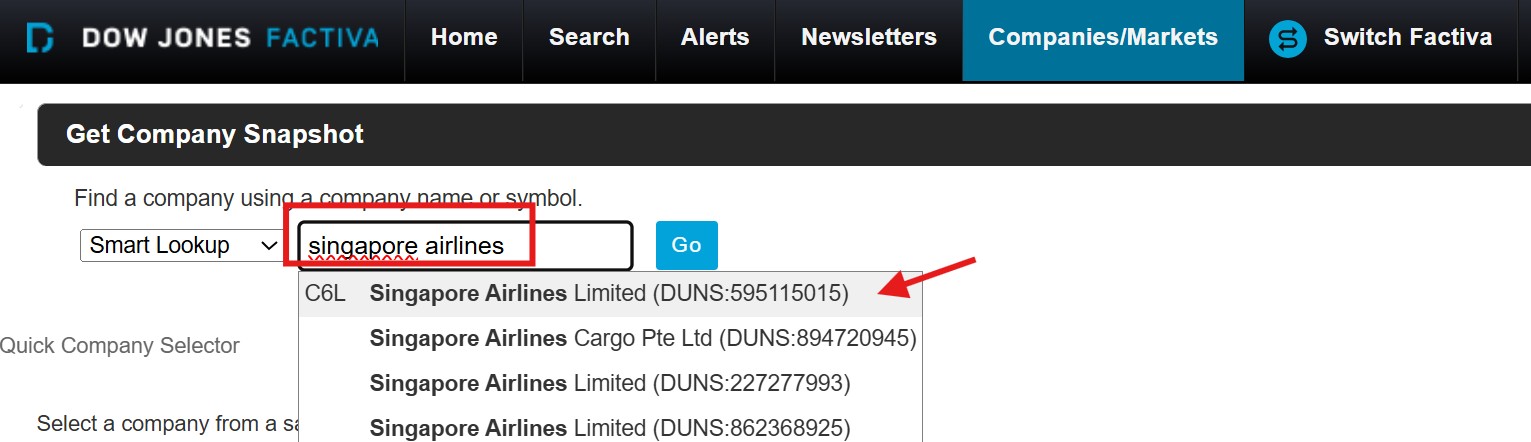
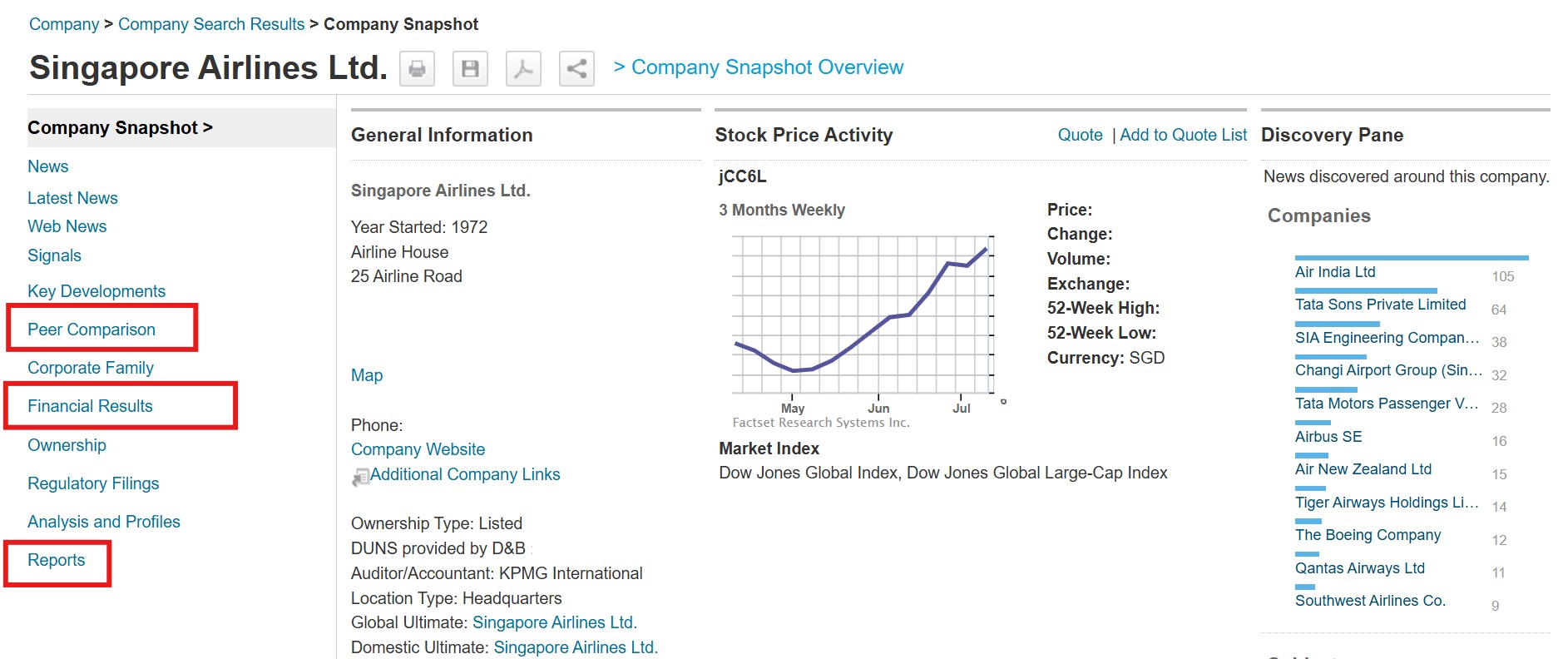
- Hover over the Companies/Markets tab. Then click Company.

- Type the company name (for example, Singapore Airlines) in the search box.
- Select the correct company from the drop-down list.
- The Company Snapshot provides key information about the company.
- Use the menu on the left to find more information.
- Peer Comparison: View the company's competitors.
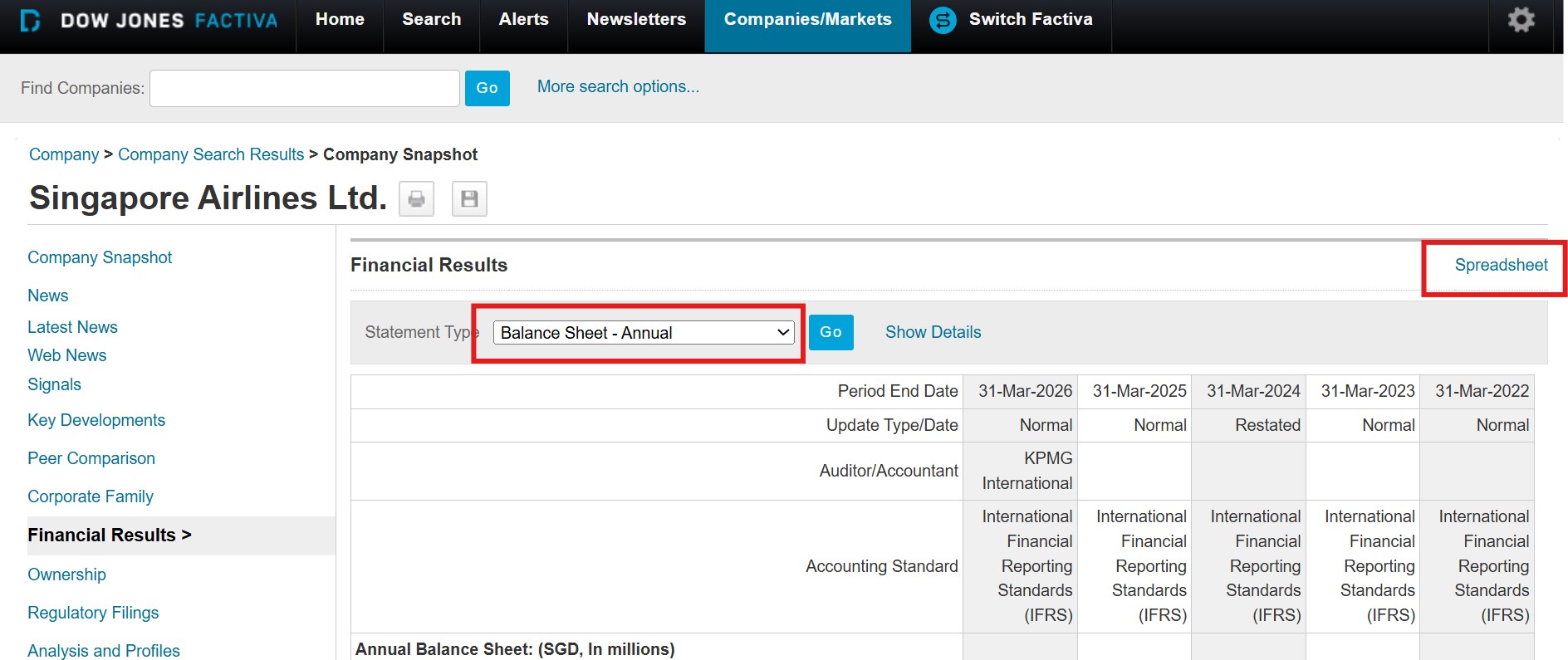
- Financial Results: View financial information such as annual balance sheets.
- Reports: Click to create a customised report.
- On the Financial Results page, you can choose between different types of financial statements.
- Click Spreadsheet to download the information as an Excel file.
Watch the Video Tutorial
This video covers:
- Classic Interface
- Industry Reports
- Company Information
Financial Times (FT.com)
Financial Times or FT.com is a global daily newspaper. It offers global business news, financial journalism, market updates, and economic analysis.
Note:
• If you are a current SIM student, please email libenQ@sim.edu.sg to request access.
• Once your request is approved, you will receive an email invitation to register for FT.com.
• Please follow the instructions in the email.

Looking for a specific article? You can also use Factiva to find Financial Times articles published within the past month.
The video below shows you how to search for a specific newspaper in Factiva.
Please email libenQ@sim.edu.sg to request access.
Once your request is approved, you will receive an email invitation to register for FT.com.
Please follow the instructions in the email.
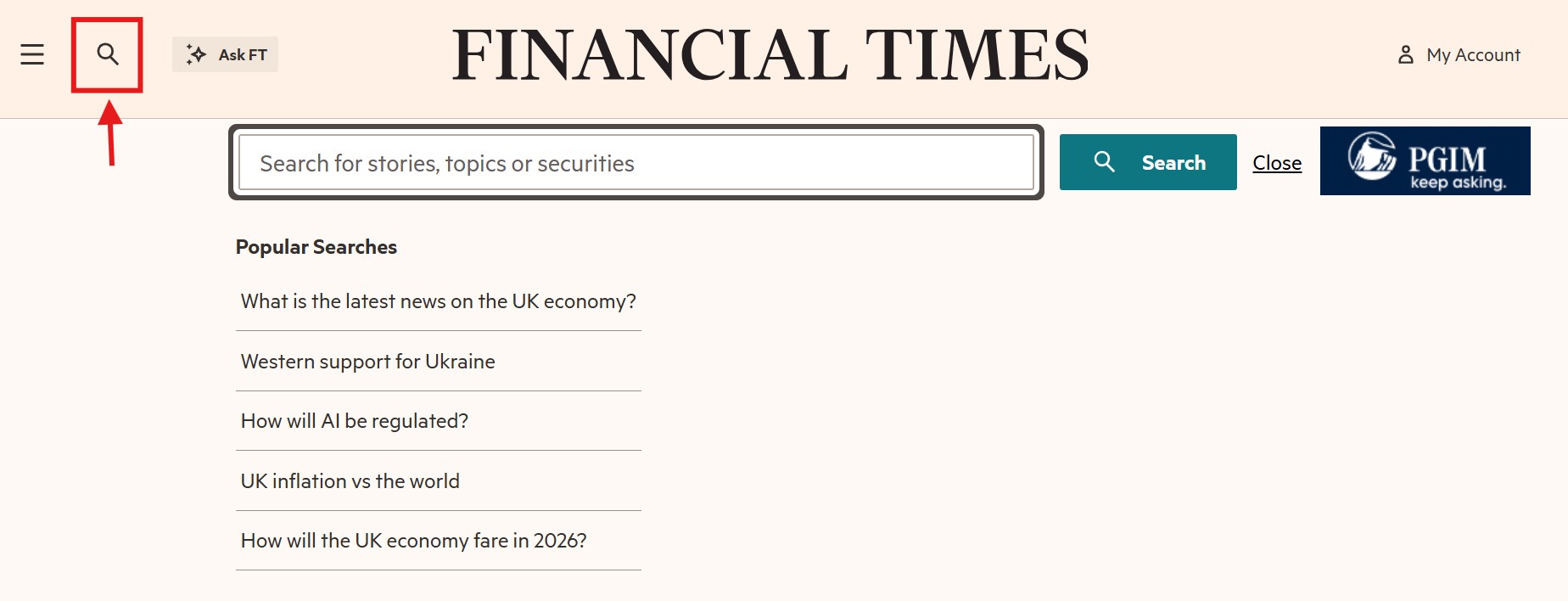
- Click the magnifying glass icon at the top of the page.
- Enter your keywords.
- Click Search.
- Select an article from the search results.
Ask FT
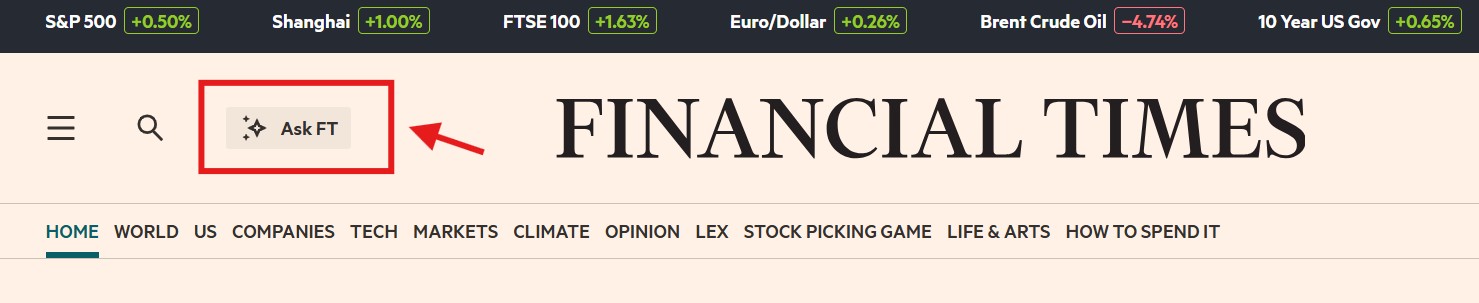
Ask FT is an AI feature that uses the Financial Times archive (from 2004 onwards) to answer your questions.
You can use it to:
- Get quick answers on unfamiliar topics, such as "Summarise the latest US political news".
- View the Financial Times articles used to generate the answer.
- Use the results as a starting point for further research.
Where to Find It
Sign in to FT.com, then click Ask FT on the homepage.
JSTOR
JSTOR provides core journals in Economics, History, Political Science, Humanities and Social Sciences.
- Go to the SIM E-Resources page: https://primo.sim.edu.sg.
-
Select your user category.
-
Sign in using your SIM email address and password (for example,
xxx001@mymail.sim.edu.sg).
Note: If prompted, follow the on-screen instructions to complete MFA (Multi-Factor Authentication).
-
Click JSTOR.

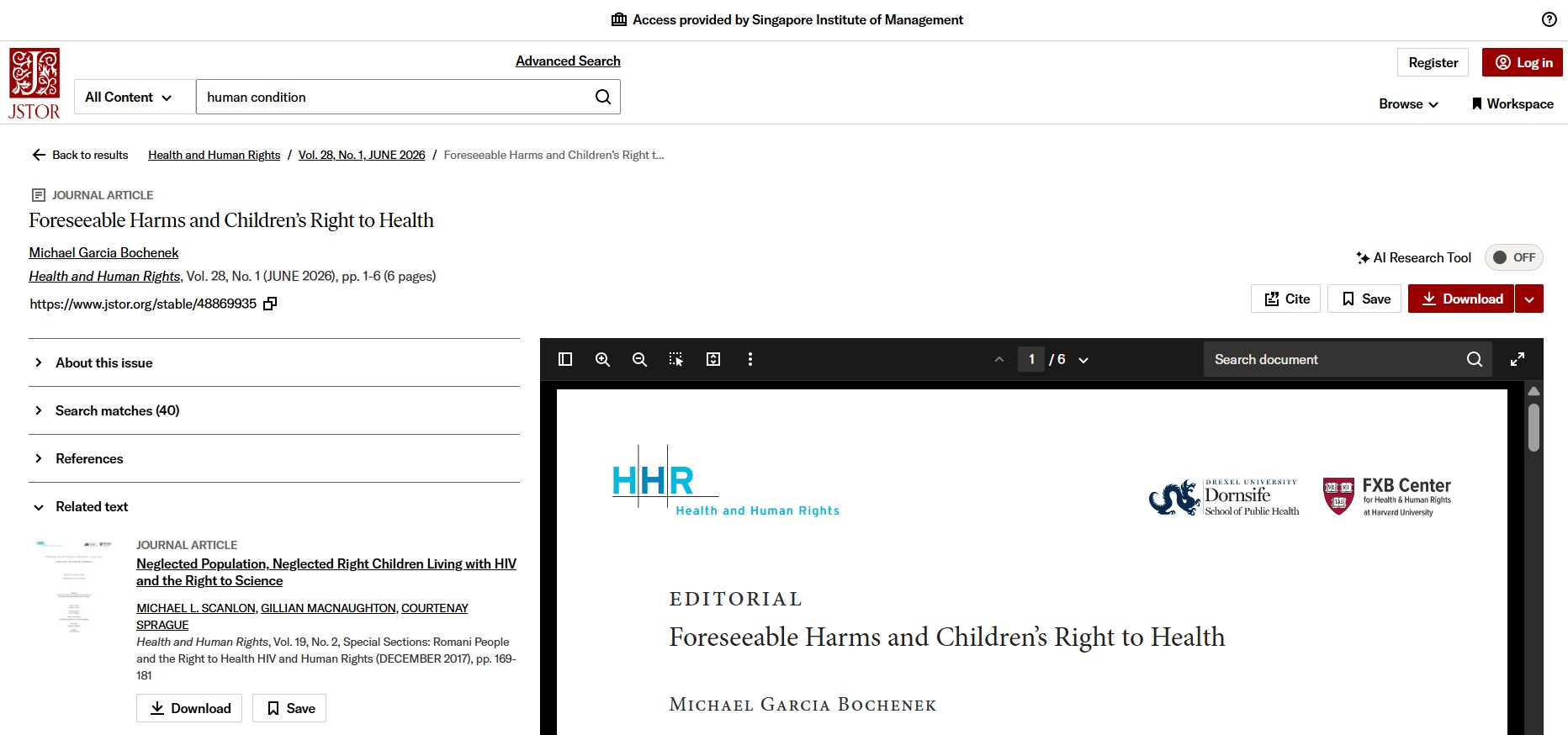
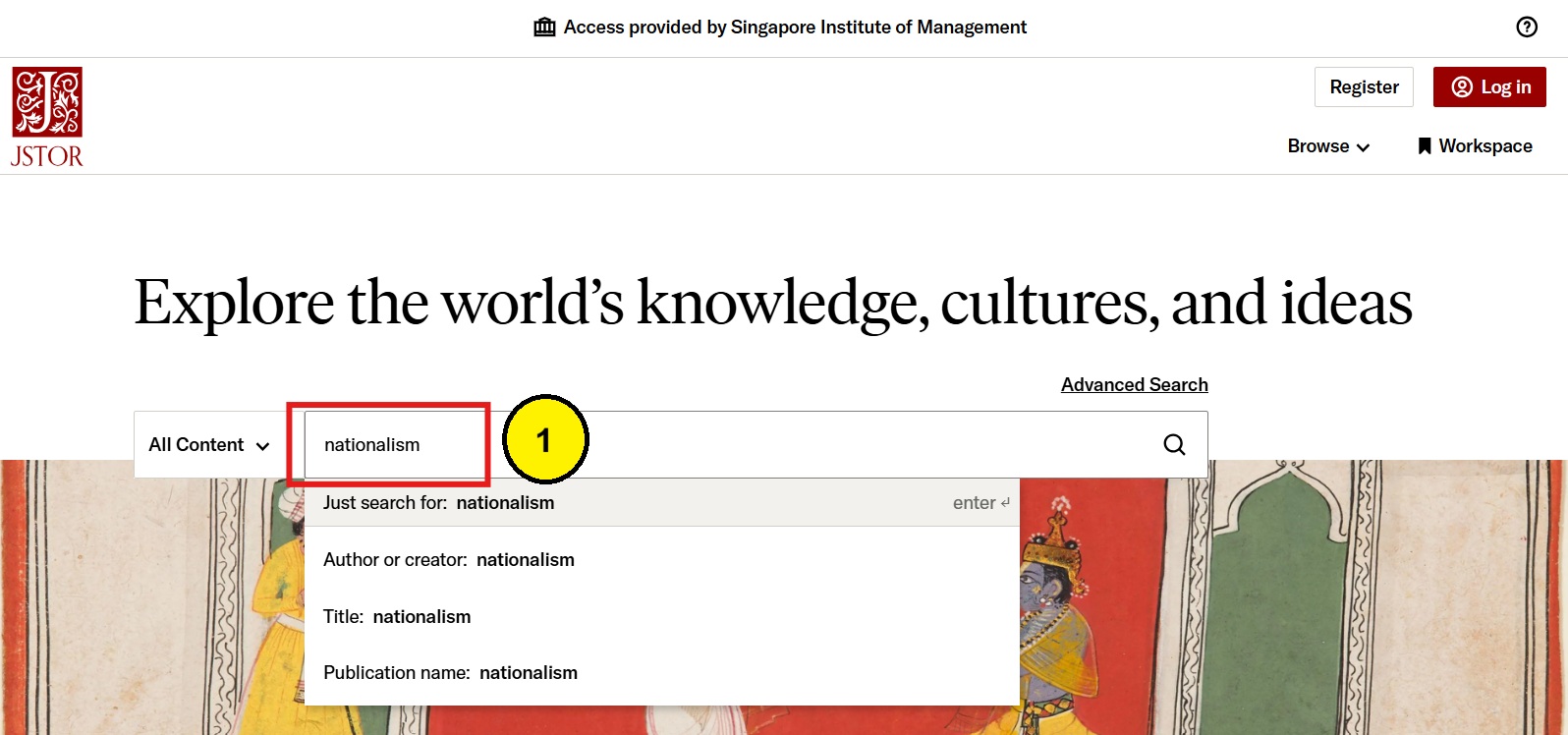
- Enter your keywords in the search box and click the magnifying glass icon.
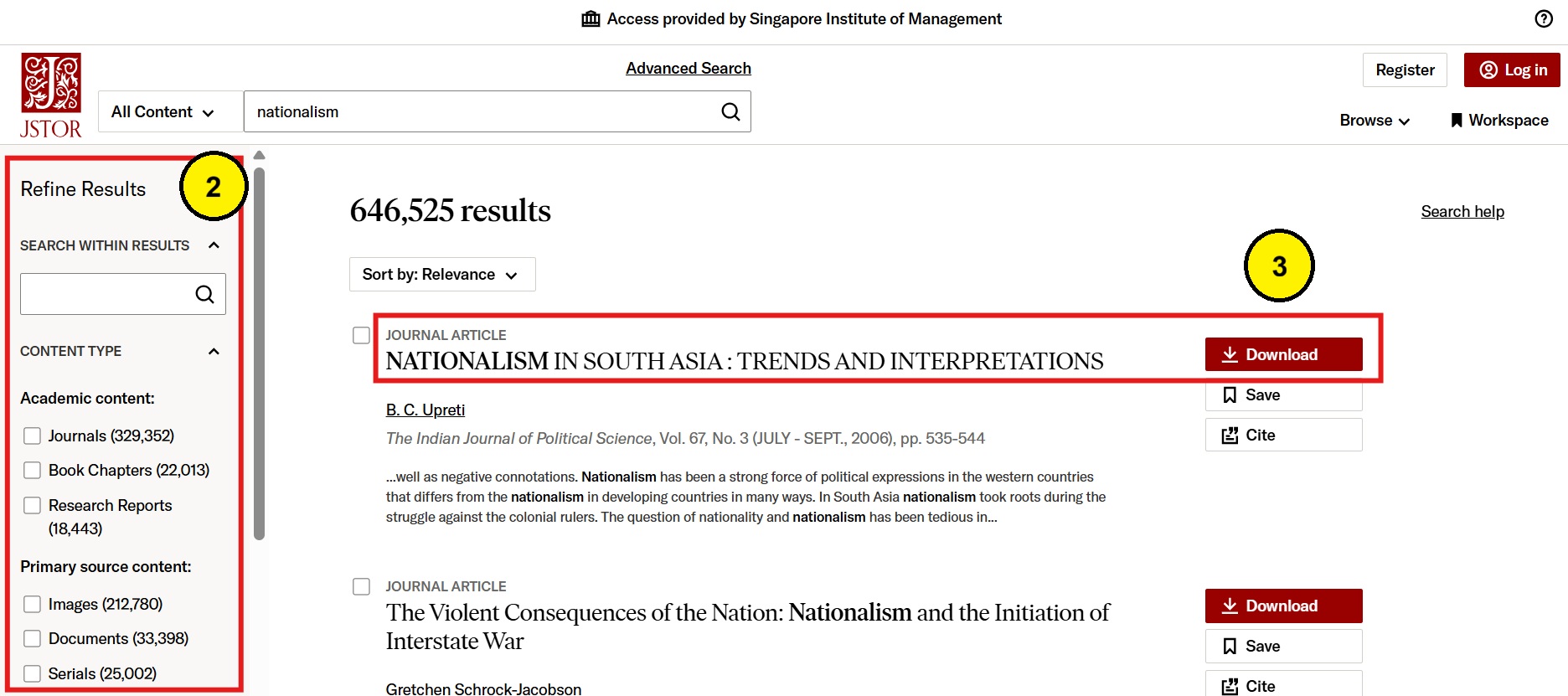
- Use the filters on the left to narrow down your results by item type, date, subject, or language.
- Click the title to open the article. You may also download it.
Watch the Video Tutorial
Passport by Euromonitor International
Passport by Euromonitor International provides strategic analysis and data insights on industries, markets, consumers and companies.
- Go to the SIM E-Resources page: https://primo.sim.edu.sg.
-
Select your user category.
-
Sign in using your SIM email address and password (for example,
xxx001@mymail.sim.edu.sg).
Note: If prompted, follow the on-screen instructions to complete MFA (Multi-Factor Authentication).
-
Click Passport.

-
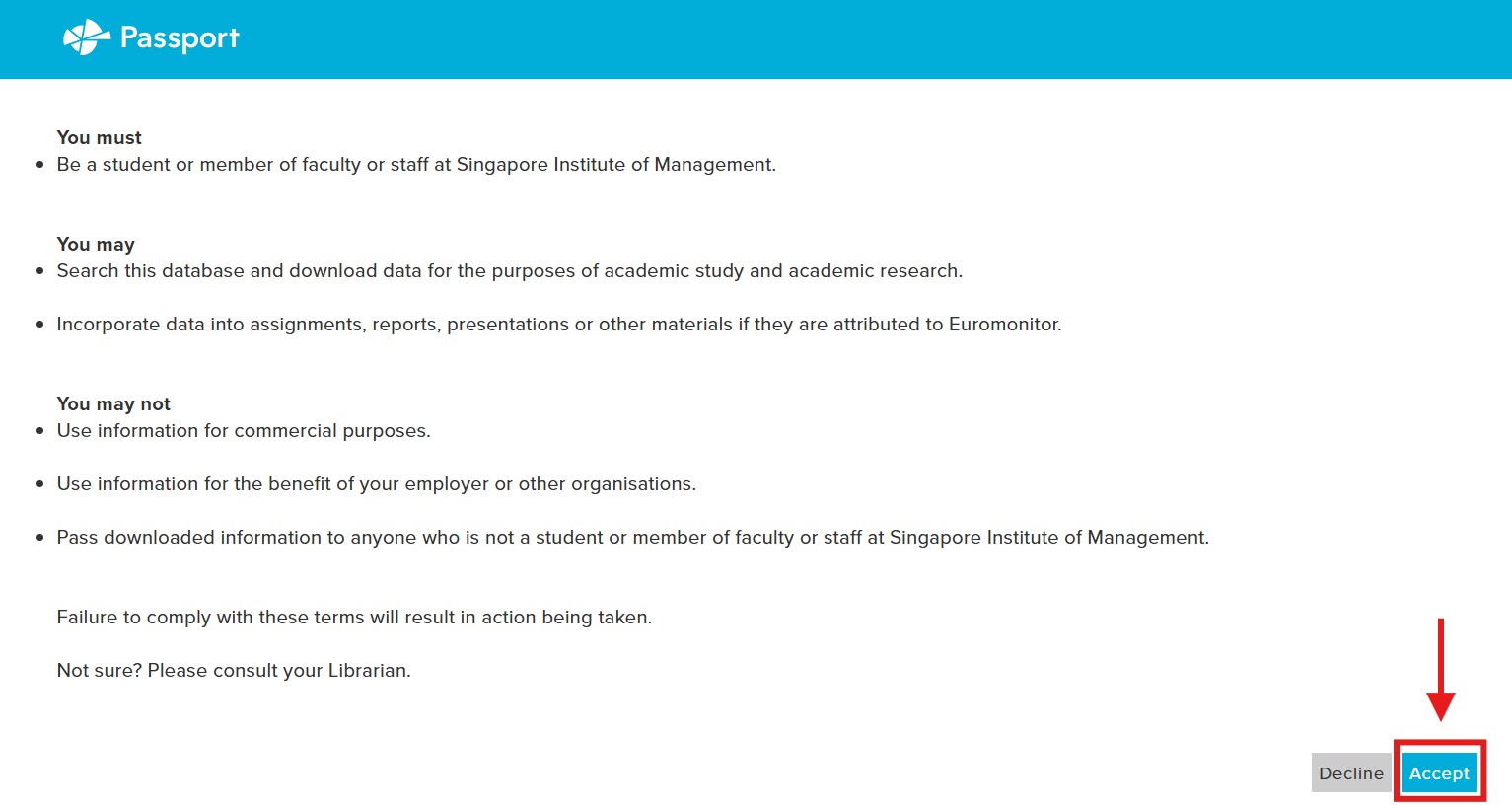
Read the Terms and Conditions, then click Accept at the bottom-right corner of the page.
Tip: Scroll down if you cannot see the Accept button.
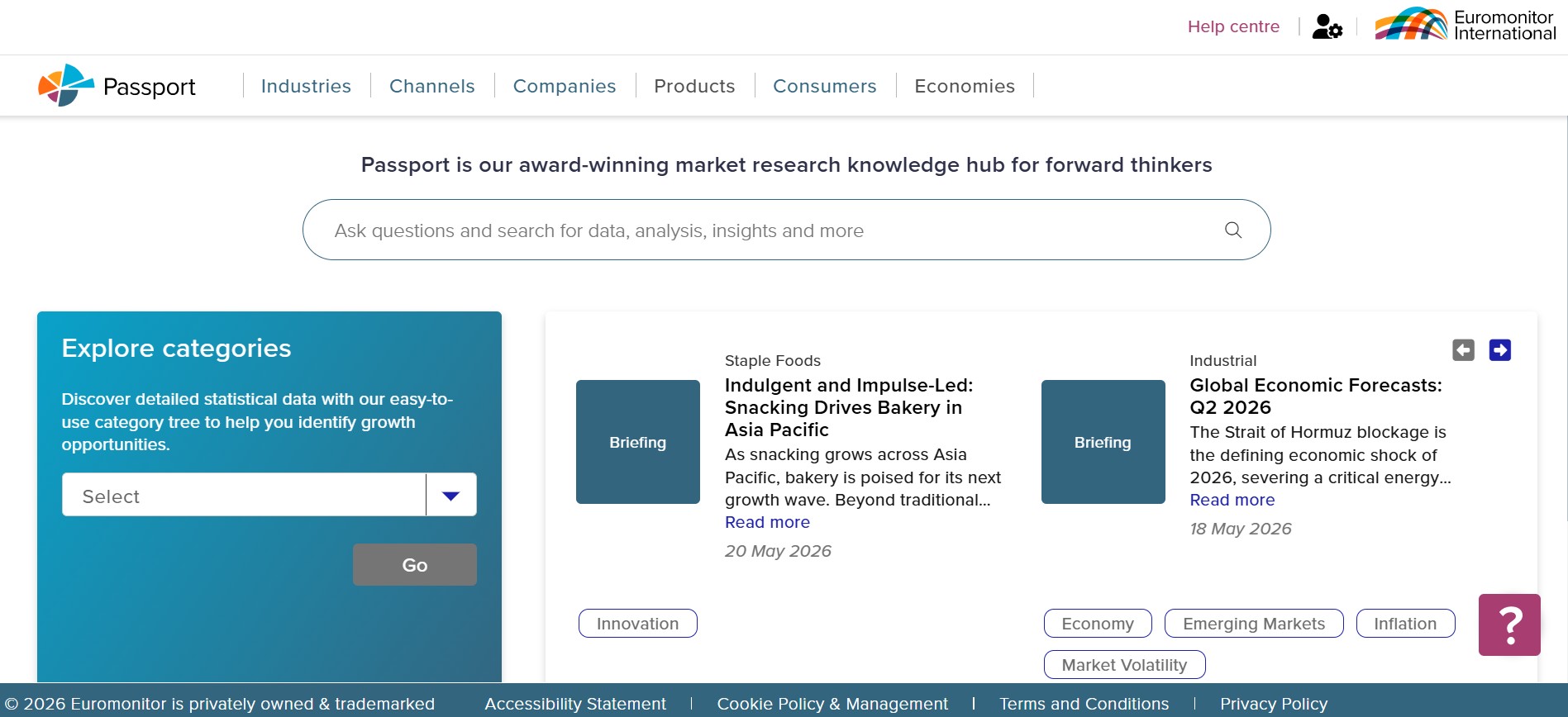
Passport offers two ways to search:
- Keyword search
- Category search
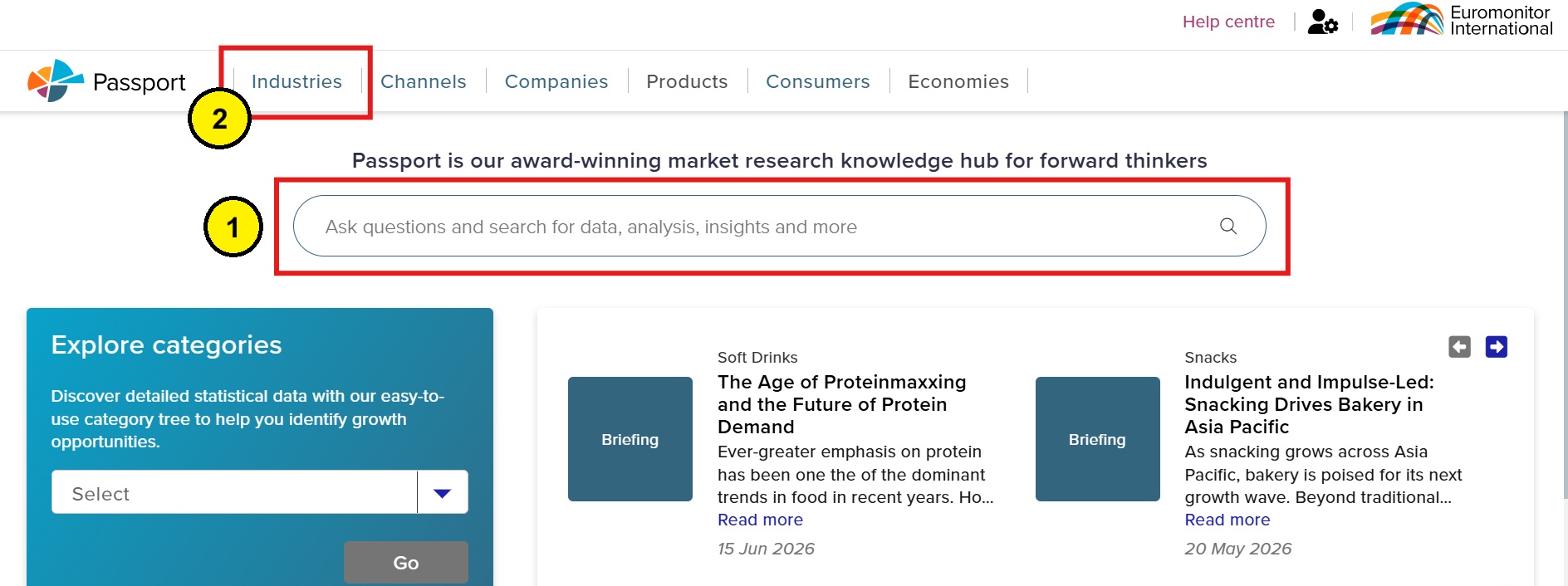
View this step-by-step guide on how to search:
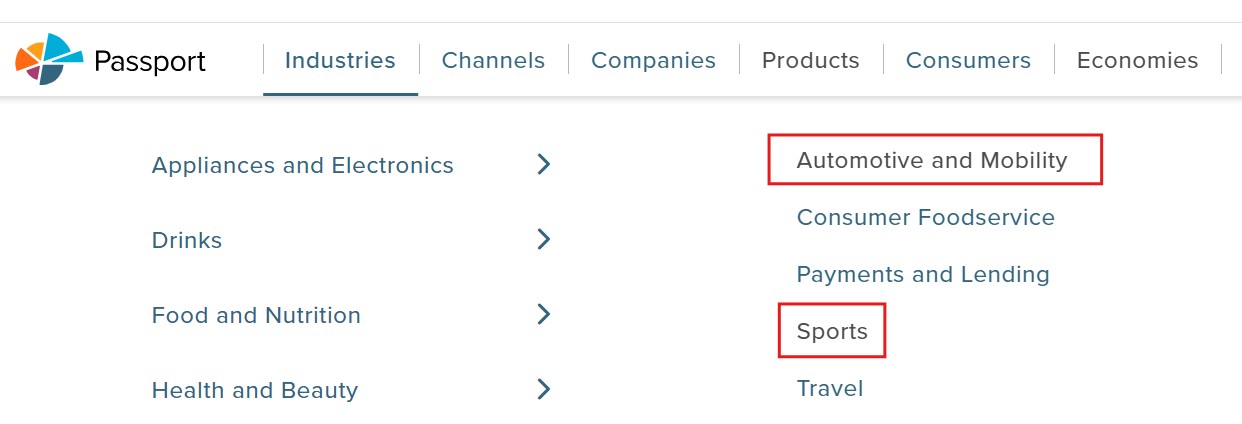
In Passport, you can access categories shown in blue. Categories shown in black are not available.
For example, under the Industries > Services category, Automotive and Mobility and Sports are not available.
Watch the Video Tutorial
Statista
Statista provides access to market data, statistics, forecasts, reports, and studies across a wide range of topics and industries.
Note: Statista is available only to current SIM students, lecturers, and staff.
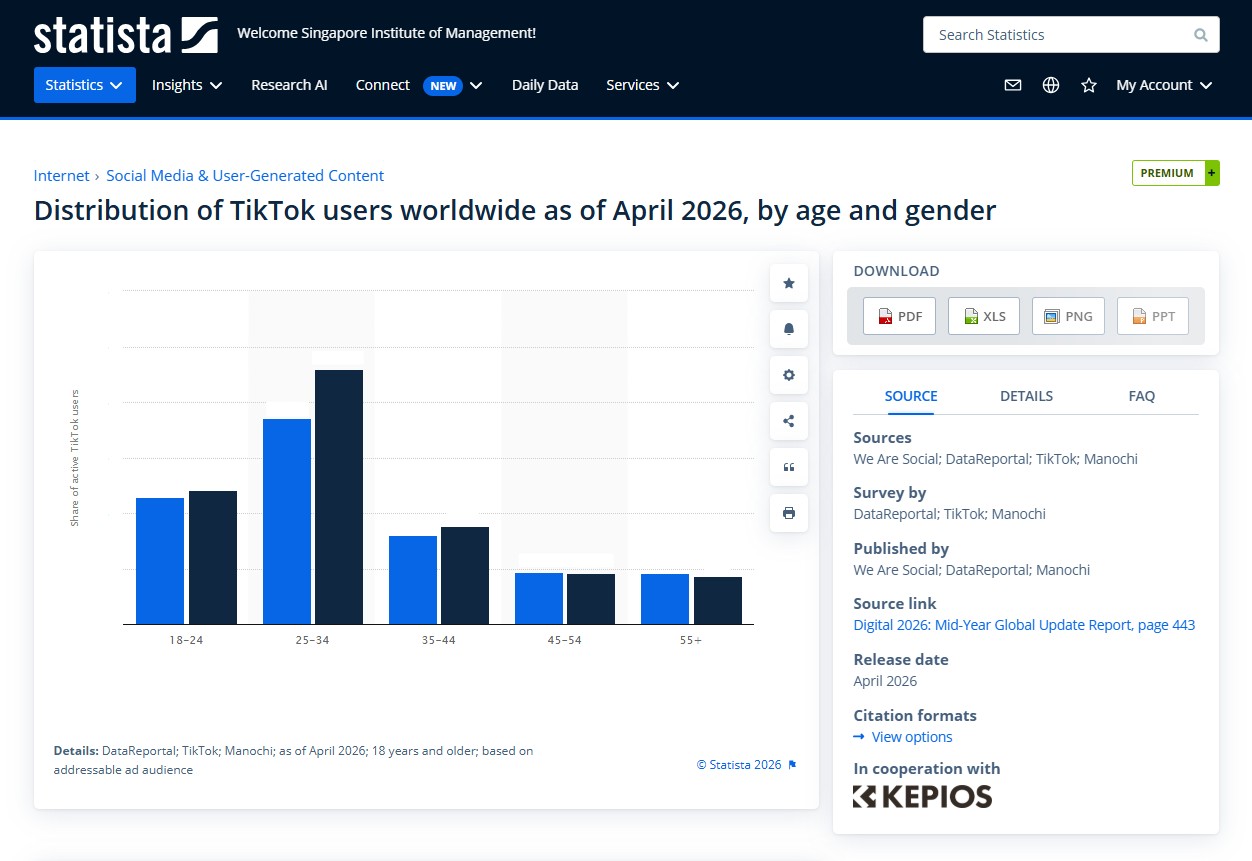
- Go to the SIM E-Resources page: https://primo.sim.edu.sg.
-
Select your user category.
-
Sign in using your SIM email address and password (for example,
xxx001@mymail.sim.edu.sg).
Note: If prompted, follow the on-screen instructions to complete MFA (Multi-Factor Authentication).
-
Click Statista.

Basic Search
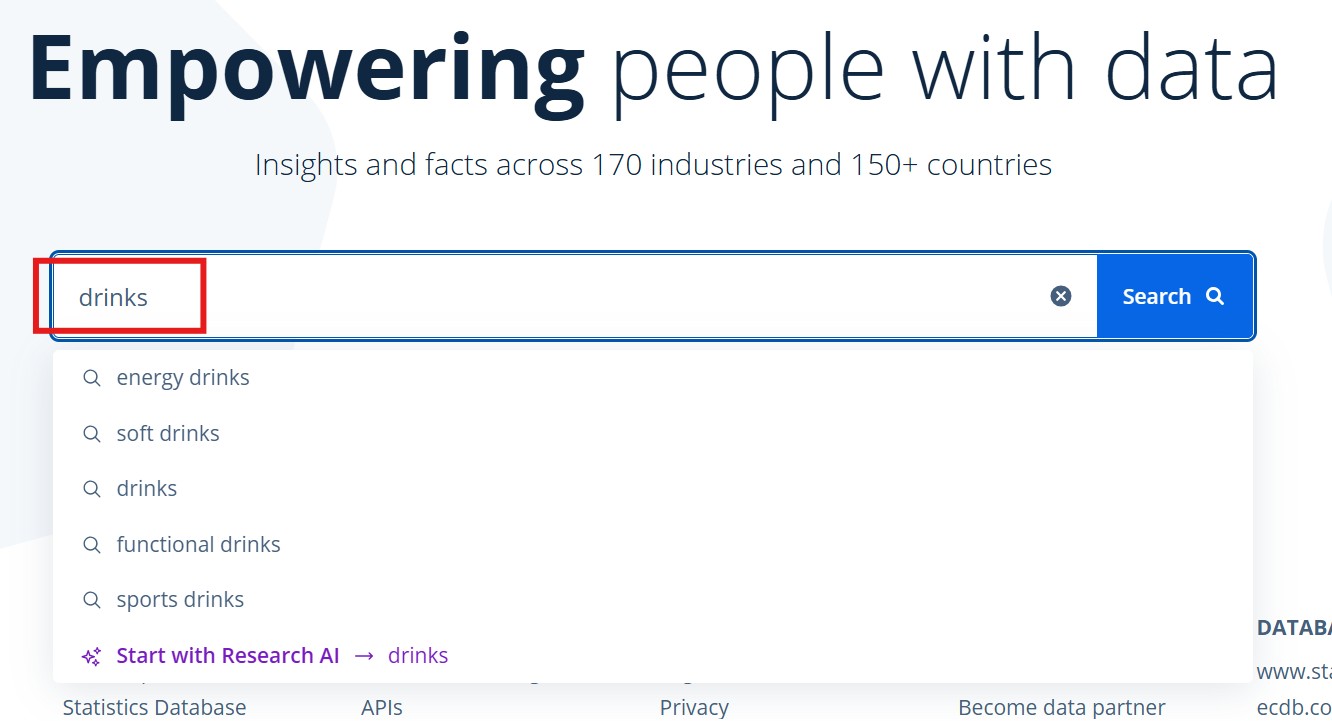
- Enter your topic in the search bar or select a suggested topic.
- Click Search.
- Select statistics, reports, or infographics from the results.
- View or download the data you need.
Citations
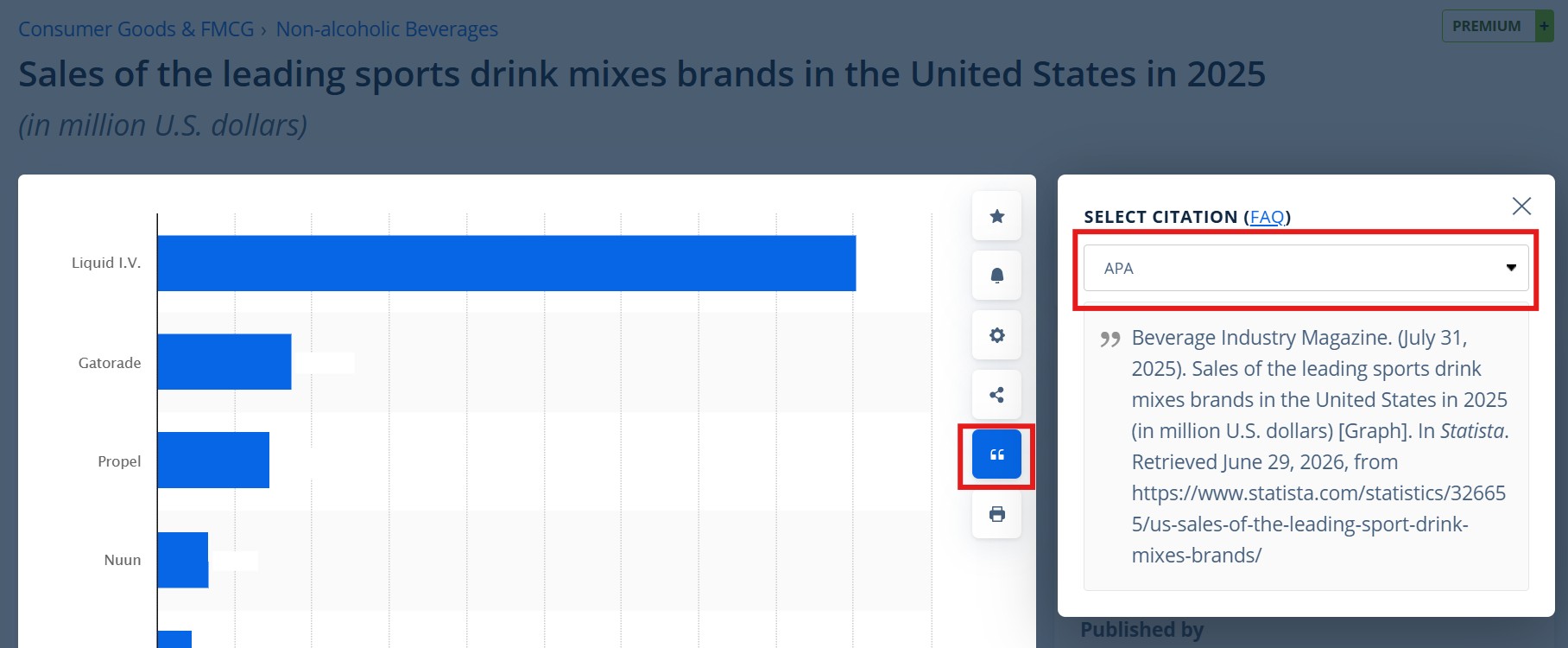
Click the Cite icon and choose a citation style like APA.
Watch the Video Tutorial
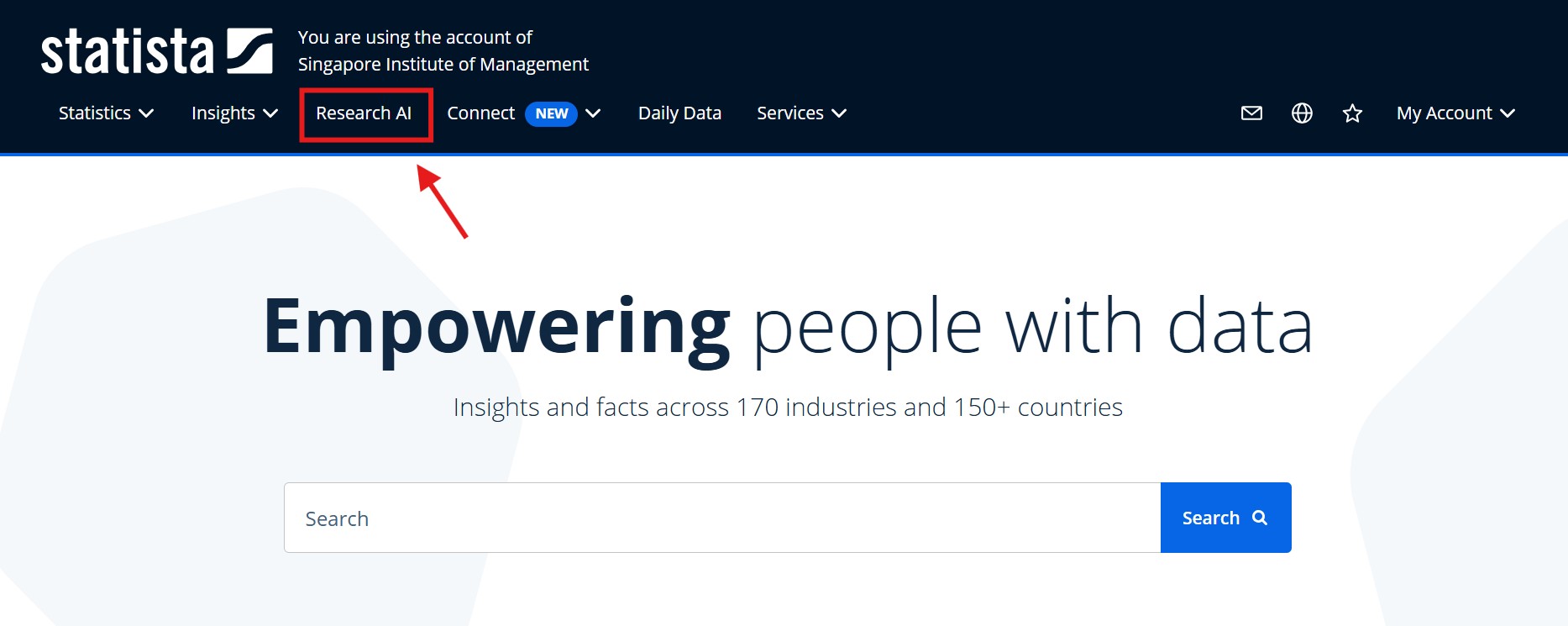
Statista includes a Research AI assistant that uses relevant content from the Statista database to answer your questions.
You can ask questions in multiple languages, including English, Chinese, and Korean, and receive answers in the same language.
Where to Find It
Sign in to Statista and look for Research AI at the top of the page.
The Straits Times
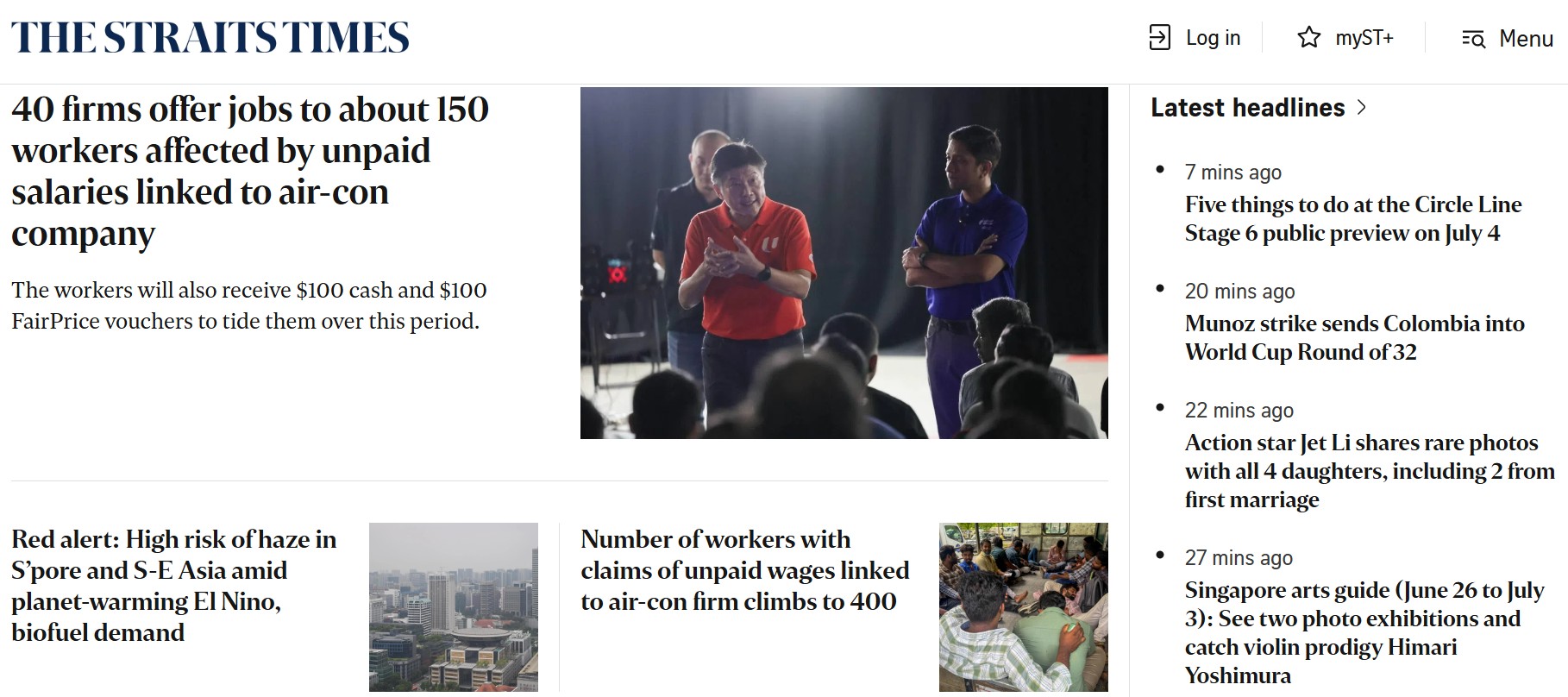
The Straits Times is a daily newspaper published in Singapore. Stay up-to-date with Home (Singapore) news, World news, East Asian news, Southeast Asian news, Sports news, Financial news, and lifestyle updates.
Note: The e-paper shows issues from the last 14 days only. Use the Search feature to find older articles.
• Website: Up to 10 users at a time
• App: Up to 40 users
If the website reaches its access limit, the user who signed in first will be logged out automatically.
Need help? Email libenQ@sim.edu.sg.
- Go to the SIM E-Resources page: https://primo.sim.edu.sg.
-
Select your user category.
-
Sign in using your SIM email address and password (for example,
xxx001@mymail.sim.edu.sg).
Note: If prompted, follow the on-screen instructions to complete MFA (Multi-Factor Authentication).
-
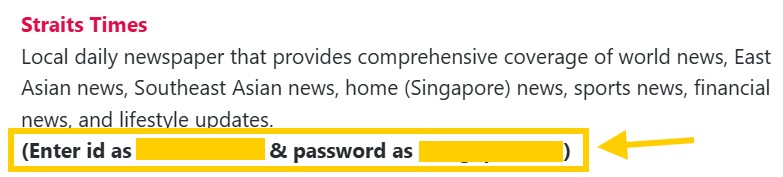
Note down the ID and password (blanked out in yellow), then click on The Straits Times.
-
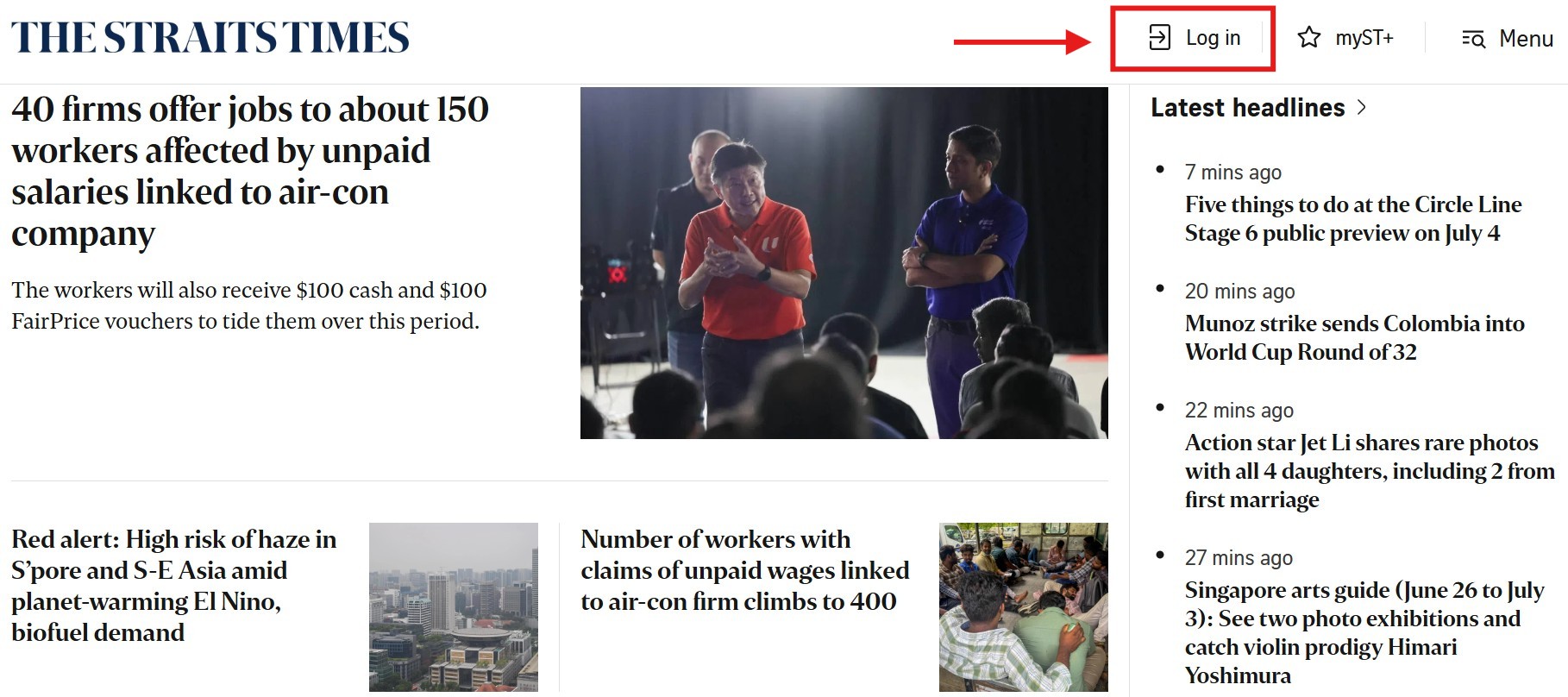
At the top right of The Straits Times page, click Log in.
-
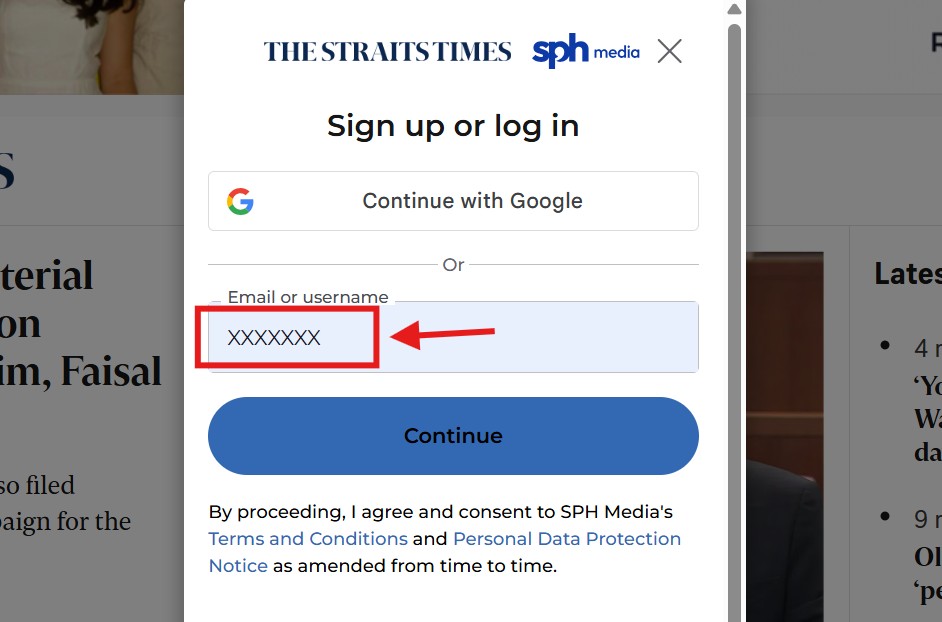
Enter the ID you noted earlier and click Continue. Then enter the Password to login.
- After signing in, click Menu.
- Click Search.
- Enter your search terms and press Enter.


Watch the Video Tutorial
E-Books
Looking for an e-book?
Start with OneSearch. Search by title, author, or topic to find e-books, physical books, and journal articles available through SIM Library.
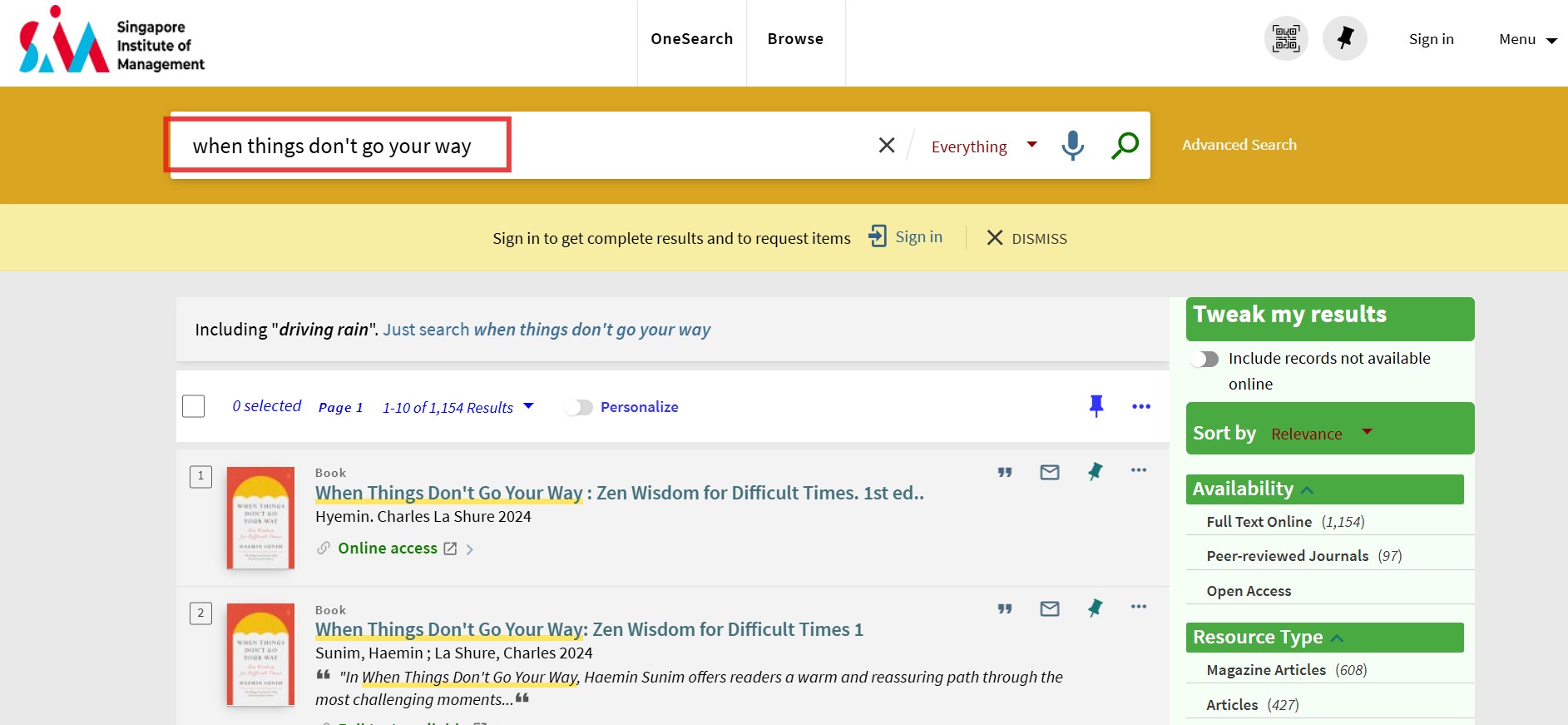
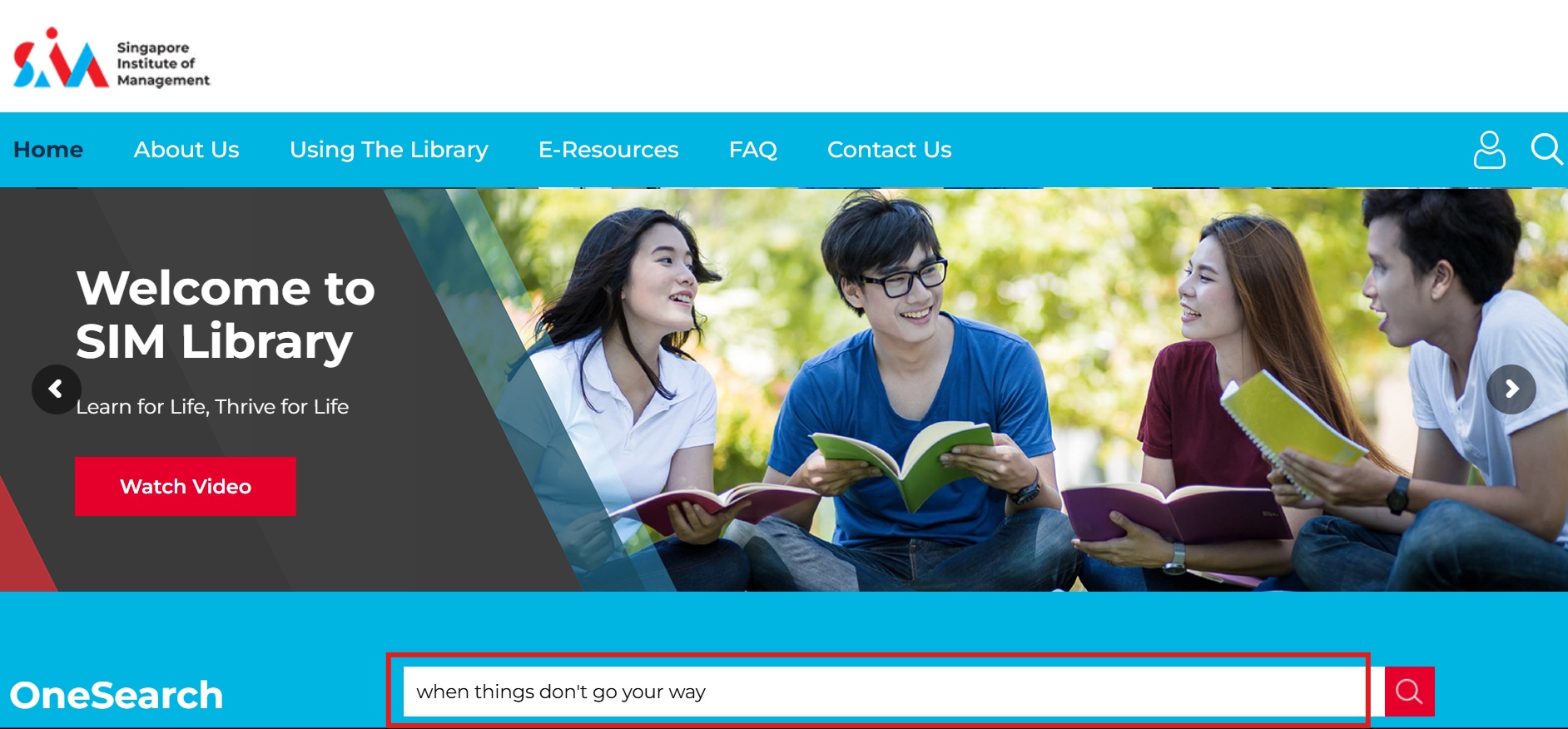
You may also use the search bar on the Library website. It will bring you to the same results page.
Or, search for e-books directly on these platforms:
| Platform | Best For |
|---|---|
| ProQuest Ebook Central | Textbooks & general reading |
| VLeBooks | Textbooks |
| Business Expert Press | General reading |
Can't find a book?
Email us at
libenQ@sim.edu.sg
-
Start with OneSearch on the SIM Library website.
Type the book title, author, or topic in the OneSearch box and click the magnifying glass icon to start searching.
Example: "when things don't go your way"
-
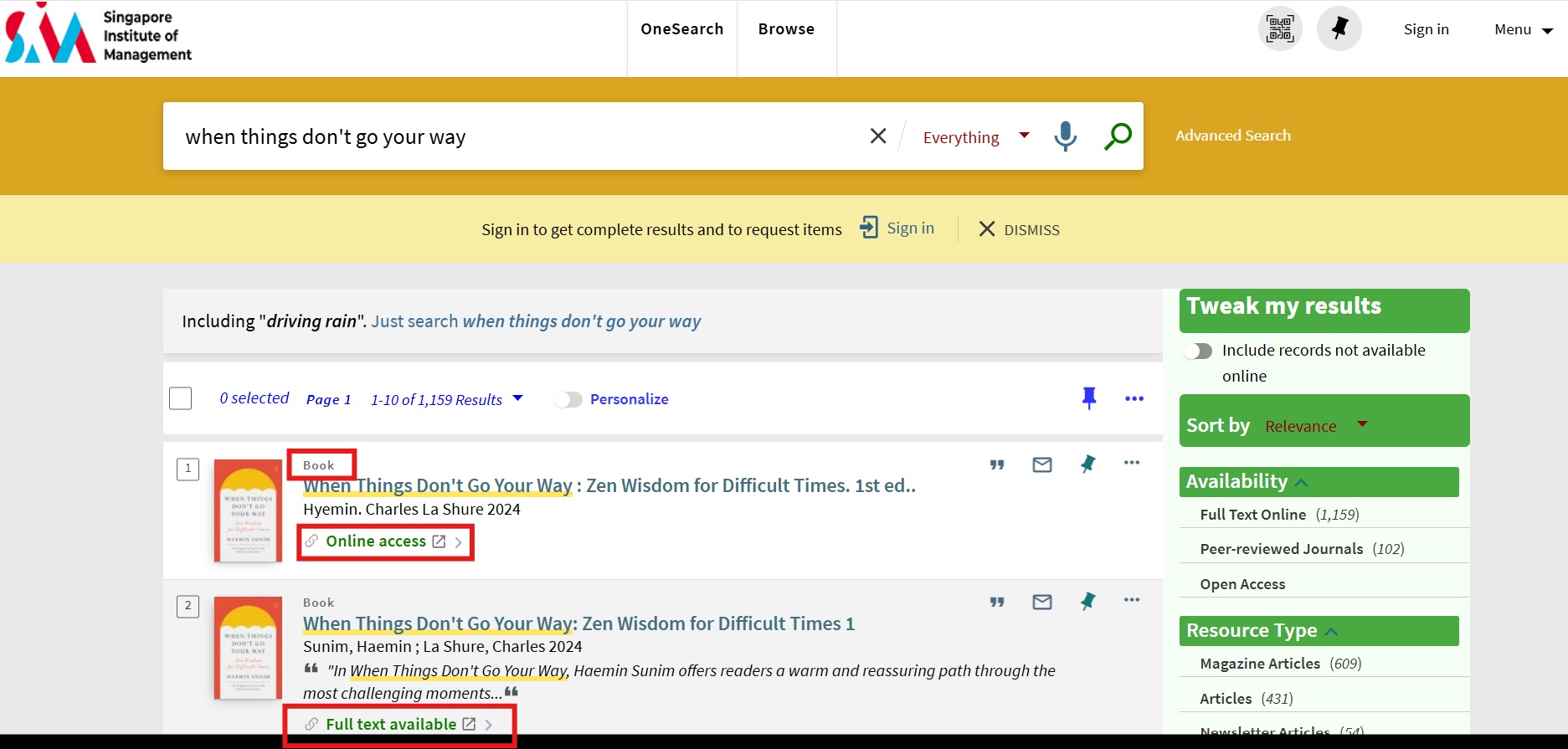
The e-book is available if the results page shows the labels:
Book+Online accessORBook+Full text available.Click the book title.
-
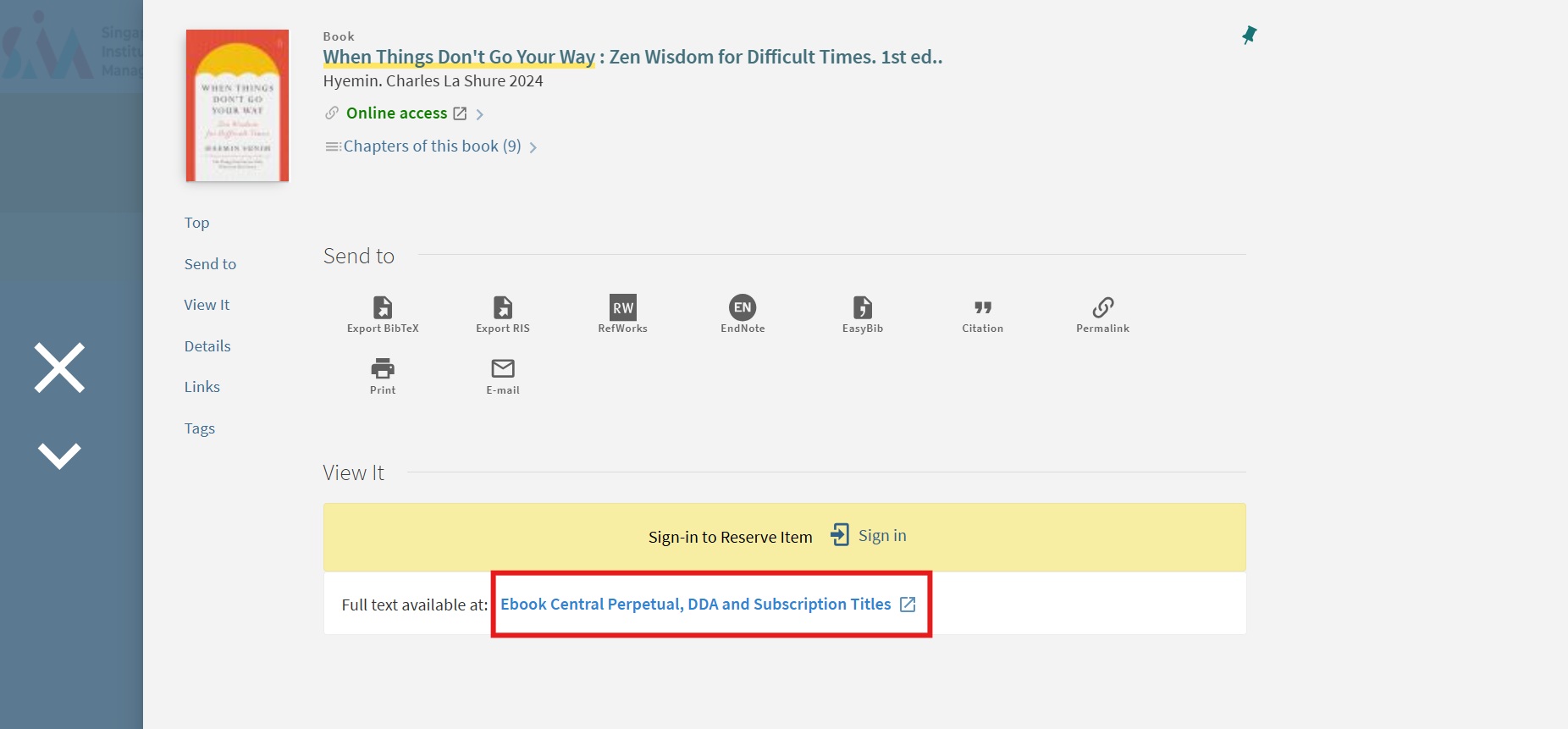
Click the Full Text link.
-
Select your user category, then sign in with your SIM email address and password.
Note: If prompted, follow the on-screen instructions to complete MFA (Multi-Factor Authentication).
-
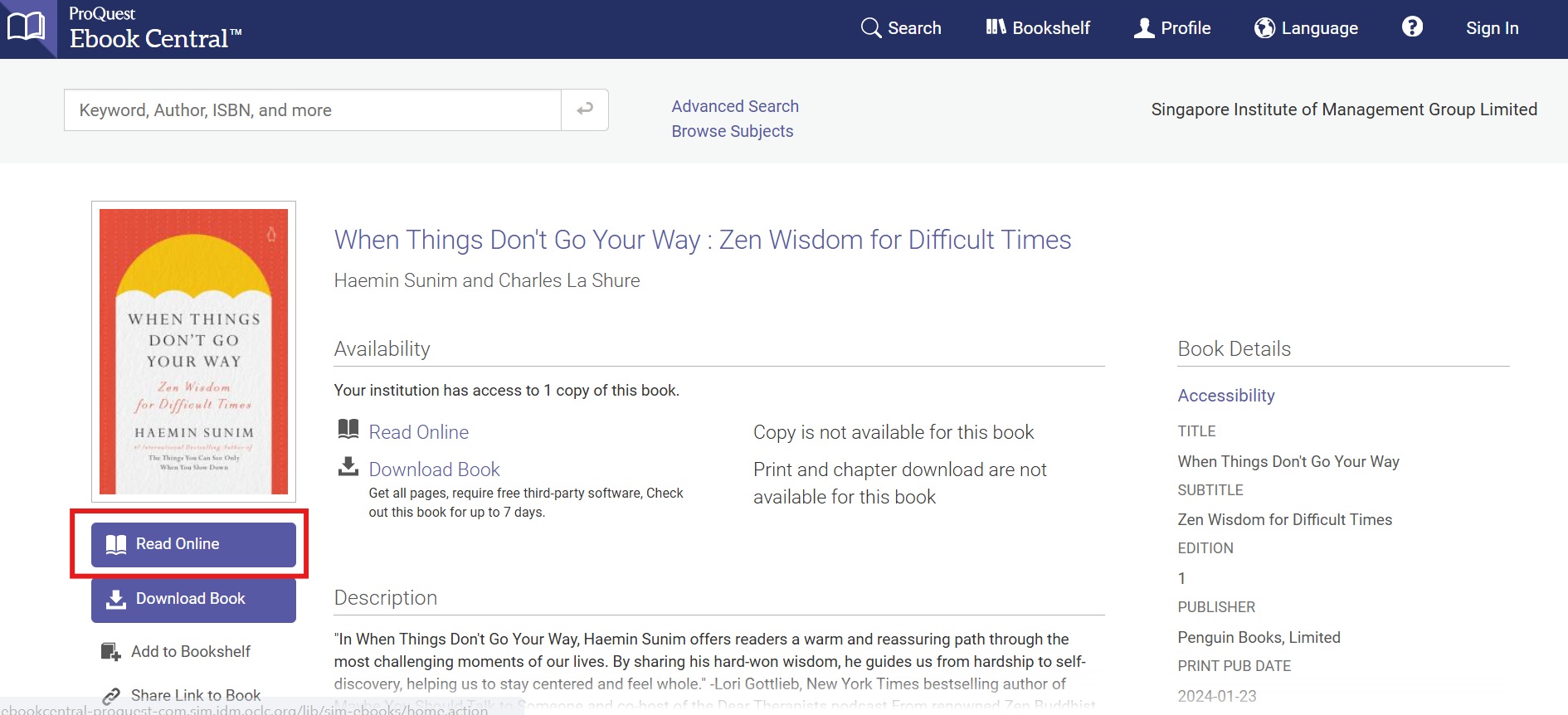
Start reading your e-book. For example, you can click Read Online on ProQuest Ebook Central.
What can I find here?
Browse selected e-textbooks and titles on topics such as mental wellness, financial literacy, and leadership.
How to Sign In
- Go to the SIM E-Resources page: https://primo.sim.edu.sg.
-
Select your user category.
-
Sign in using your SIM email address and password (for example,
xxx001@mymail.sim.edu.sg).
Note: If prompted, follow the on-screen instructions to complete MFA (Multi-Factor Authentication).
-
Click ProQuest Ebook Central.
How to Search
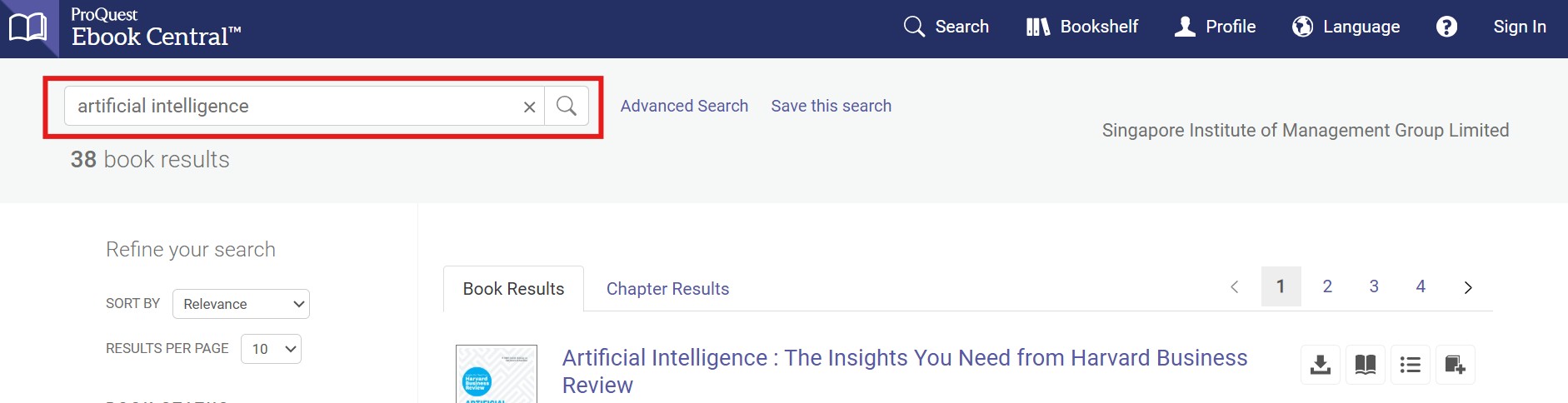
- When you first sign in, you will see the full list of e-books available.
- Use the search box to find e-books by keyword, ISBN, title, or author.
AI Research Assistant
ProQuest's AI Research Assistant can help you explore and ask questions about the content of a book.
What can I find here?
Find selected e-textbooks
How to Sign In
- Go to the SIM E-Resources page: https://primo.sim.edu.sg.
-
Select your user category.
-
Sign in using your SIM email address and password (for example,
xxx001@mymail.sim.edu.sg).
Note: If prompted, follow the on-screen instructions to complete MFA (Multi-Factor Authentication).
-
Click VLeBooks.
How to Search
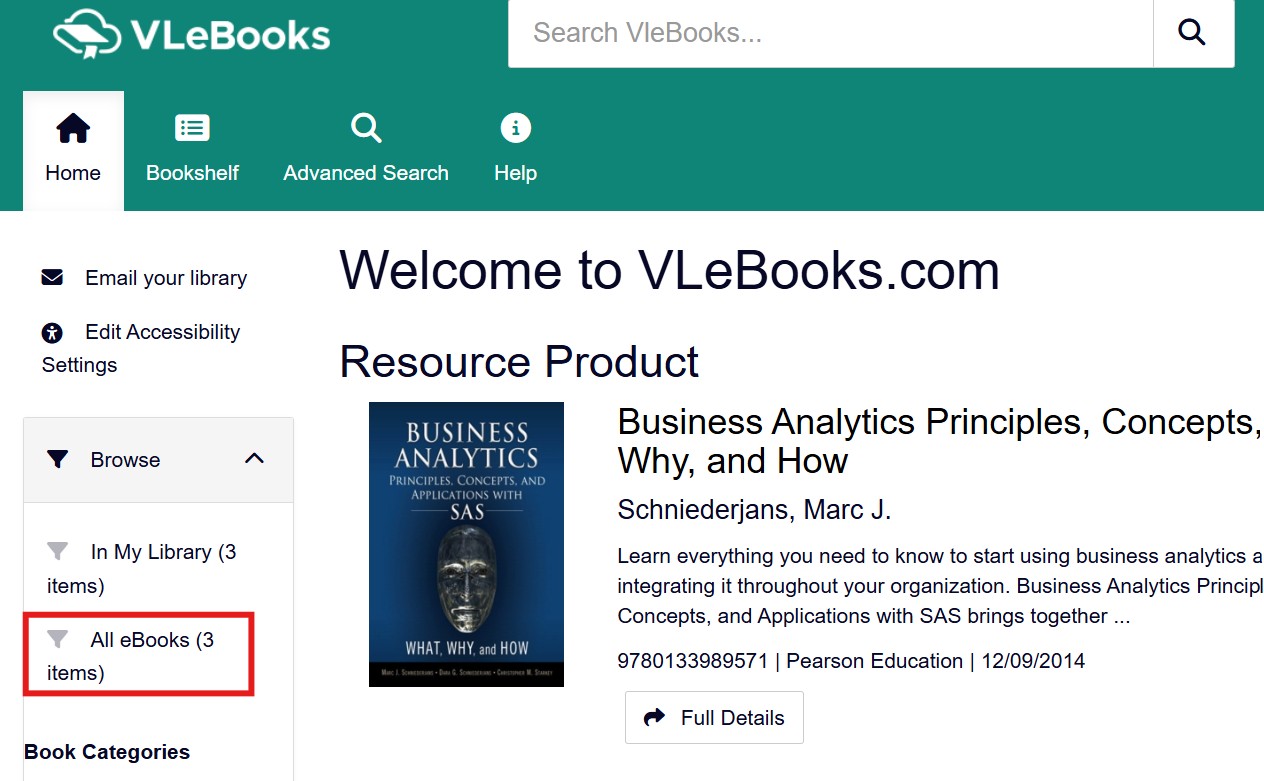
Click All eBooks to browse the full collection available through VLeBooks.
What can I find here?
Find e-books on business, finance, entrepreneurship, and related topics.
How to Sign In
- Go to the SIM E-Resources page: https://primo.sim.edu.sg.
-
Select your user category.
-
Sign in using your SIM email address and password (for example,
xxx001@mymail.sim.edu.sg).
Note: If prompted, follow the on-screen instructions to complete MFA (Multi-Factor Authentication).
-
Click Business Expert Press E-Books.

How to Search
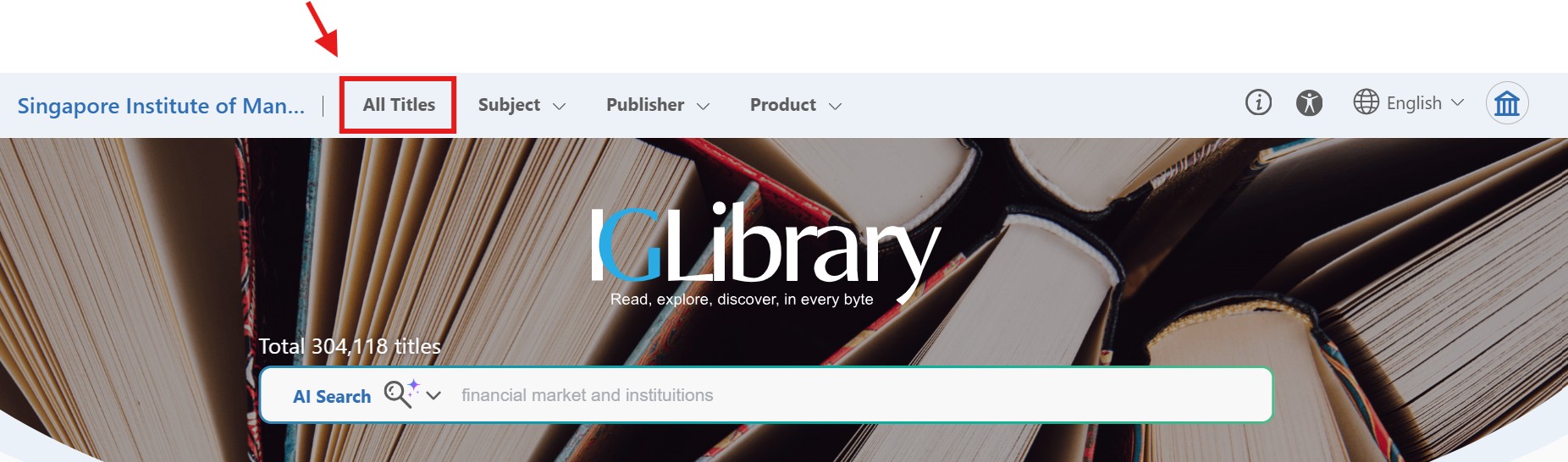
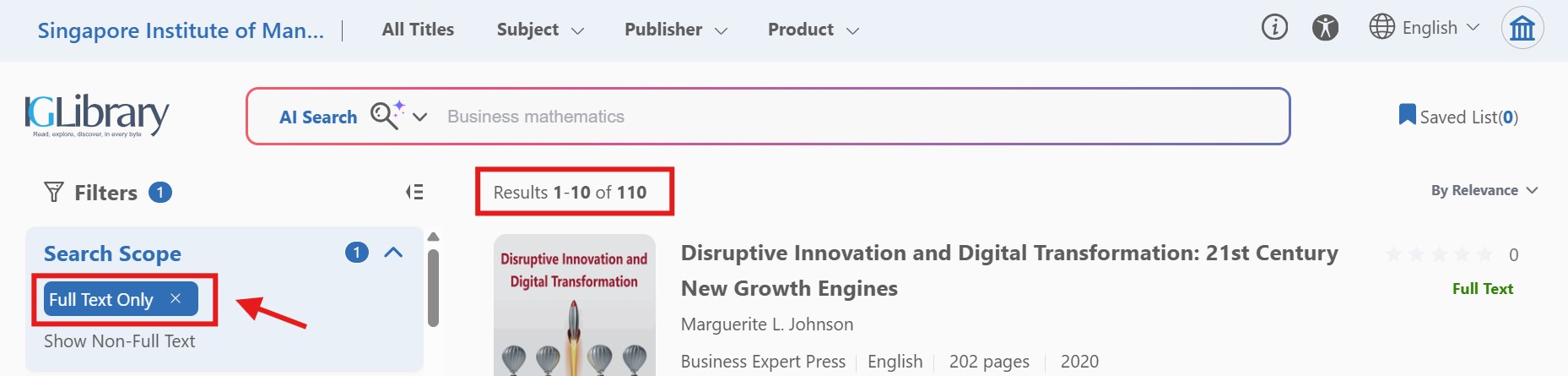
By default, the platform displays all available titles, including books that are not part of SIM Library's collection.
Select All Titles, then Full Text Only to view books available through SIM Library (110 titles).